
Go to Quarantine in the side navigation to view, search and manage emails that are in quarantine.
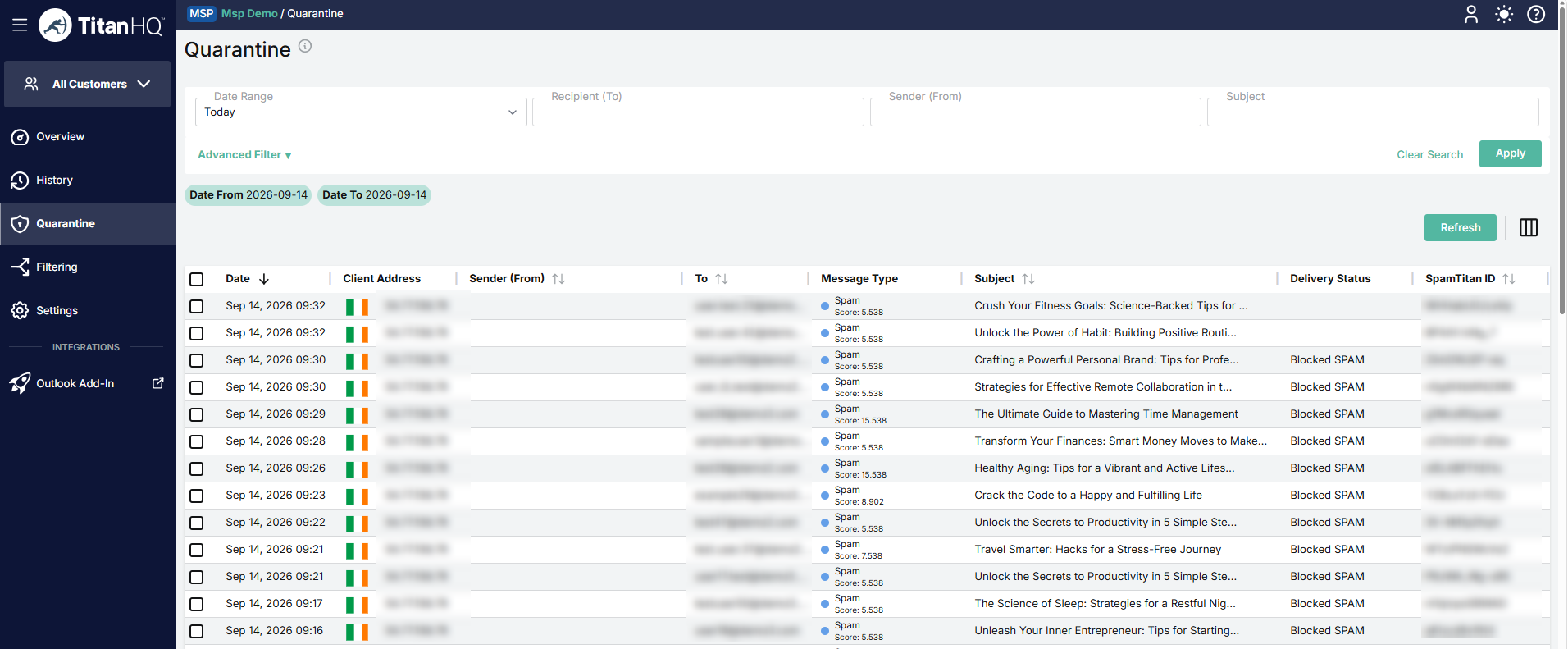
When evaluating email for spam, SpamTitan applies hundreds of rules to arrive at an overall spam score for each email. By default, the spam score is five (5). Email scoring above the specified spam score is considered spam and is quarantined by default. Email that scores below the spam score is considered legitimate and forwarded to the recipient.
To change the spam score setting for a domain or user, or to change the default action for email that scores above the specified spam scores, go to Policies > Domain Policies or User Policies.
The following actions can be performed from the Quarantine page:
Search your quarantined email. Select Advanced Filter to expand the advanced search options. Read more in Searching Quarantine.
Select an email from the list to view more information about it. See Managing Quarantined Email.
Delete an email by checking the box next to the email and selecting Delete. Alternatively, you can click on the email, and in the slideout, go to Actions > Delete. You can select multiple emails for deletion. If a message is deleted from quarantine, that message will not appear in the associated users’ quarantine, or in their quarantine report.
Release an email by checking the box next to the email and selecting Release. Alternatively, you can click on the email, and in the slideout, select Actions > Release. This automatically forwards the email to the recipient. You can select multiple emails for release.
Allow an email by checking the box next to the email and selecting Allow. Alternatively, you can click on the email, and in the slideout, select Actions > Allow. You can select multiple emails to be allowed. Each email address is then added to the allow list and the email is released from quarantine and delivered to the recipient.
Click the columns icon to display the quarantine table column names. Slide each on and off to view or hide a column.
Click Refresh to refresh the quarantine page.
Note: Date filters and displayed times use the viewer's browser timezone.