DMARC (Domain-based Message Authentication, Reporting, and Conformance) is an email authentication protocol that helps to prevent unauthorized use of your domain. DMARC checks to ensure that the domain in the From: header aligns with the SPF and that the DKIM signature is authenticated to help prevent spoofing.
As an admin, you have the option to exclude IP addresses/networks and/or domains from DMARC checks. This is useful to ensure that legitimate traffic isn't blocked. This can happen, for example, if a sending domain does not have full DMARC alignment. Many organizations use marketing platforms or SaaS ticketing services to send on their behalf. If those providers don't sign the messages with DKIM aligned to the customer domain, strict DMARC will fail. Likewise, if they send messages using their own envelope domains, DMARC will fail. Similarly, forwarding emails invalidates SPF, and often DKIM, leading to DMARC failures and potential delivery issues.
DMARC exemptions can be managed from the MSP, customer or domain level by going to Filtering > DMARC.
Note: You can also set DMARC exemptions through the SpamTitan RESTful API.
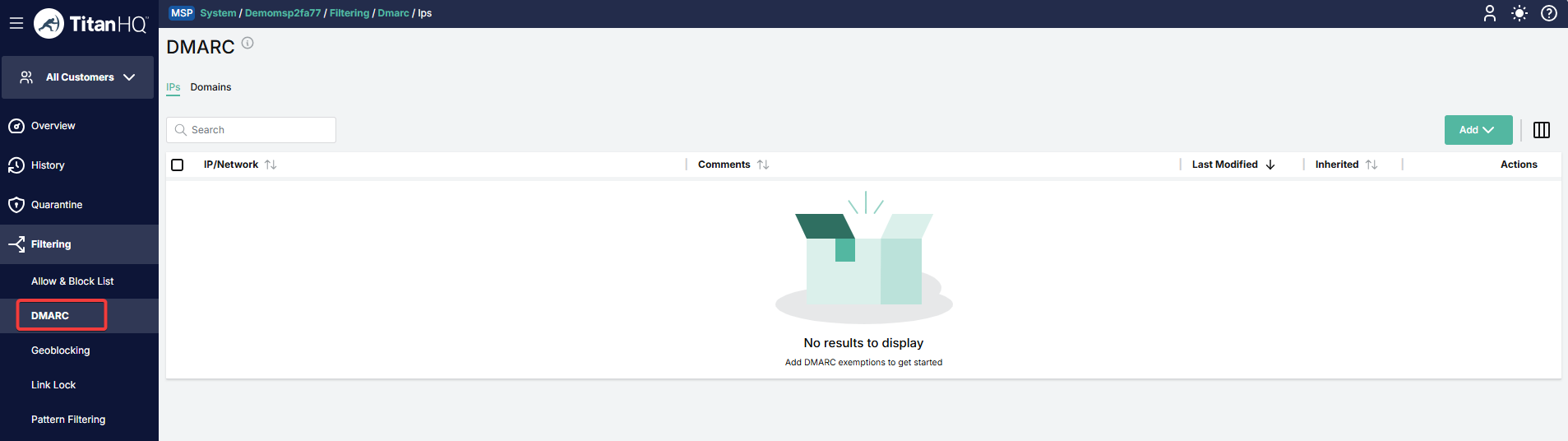
If an IP address or domain has been exempted from DMARC checks on the MSP level, it is automatically inherited on the customer level. If a domain has been exempted on the customer level, it is automatically inherited on the domain level. The Inherited column in the DMARC table shows if an entry is inherited.
How to add a DMARC exemption
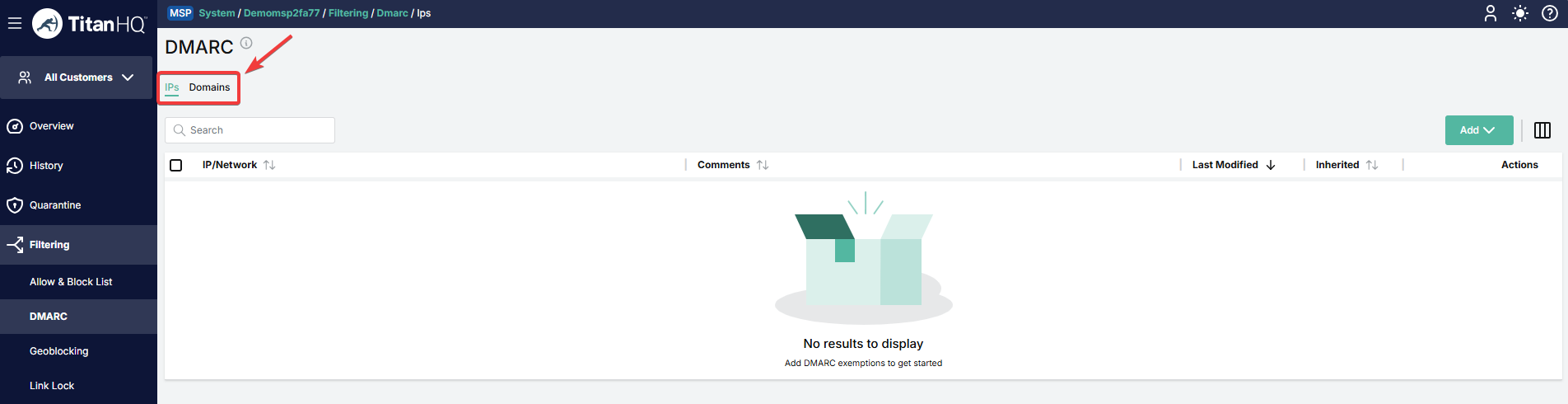
1. Select the tab for the type of exemption you want to add (IP or Domain). In this example, we will use IP.
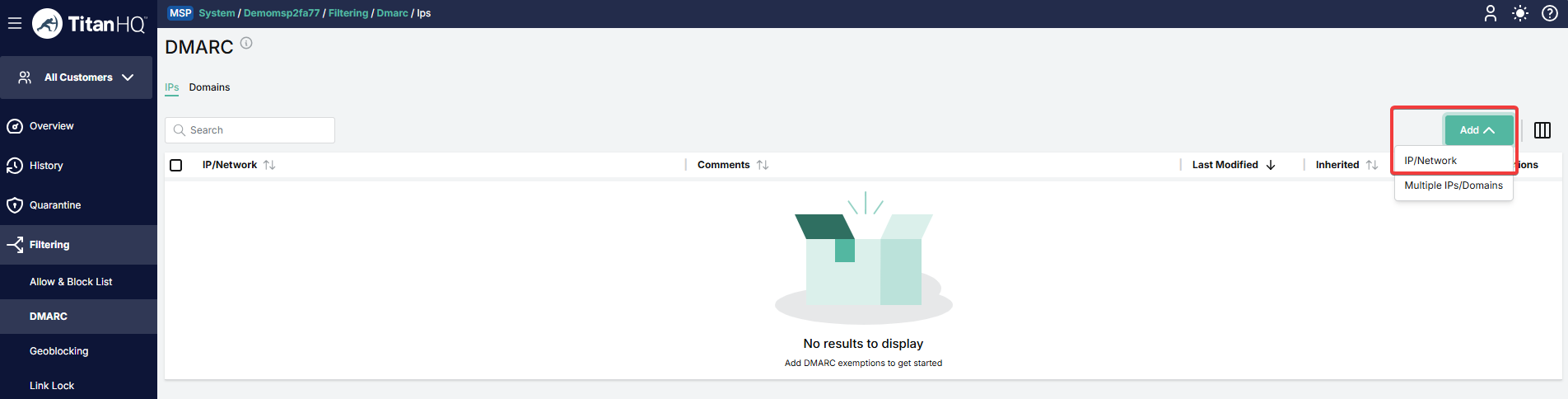
2. To add a single entry, go to Add > IP/Network.
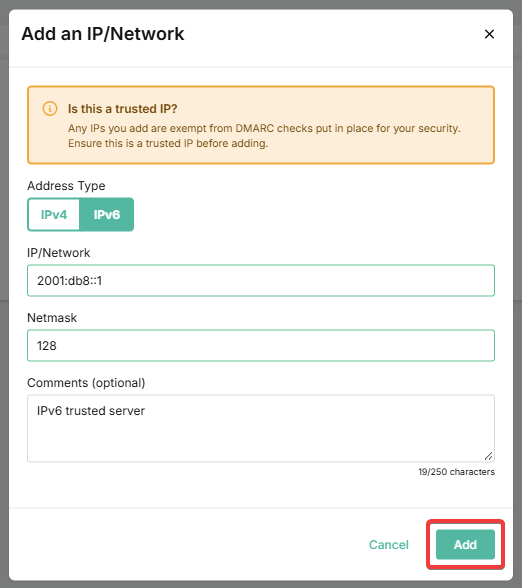
Enter the details for this entry and click Add.
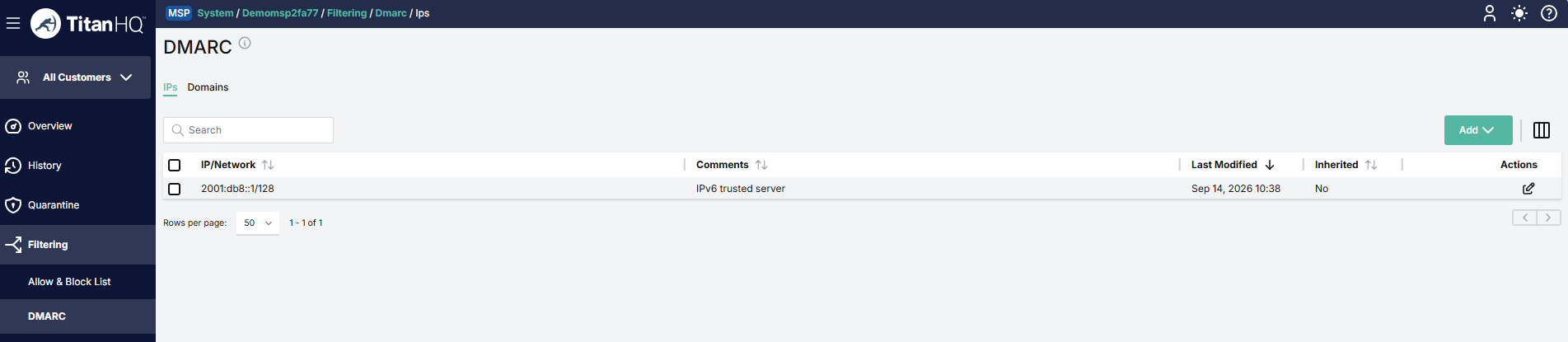
Your new entry will now appear in the table.
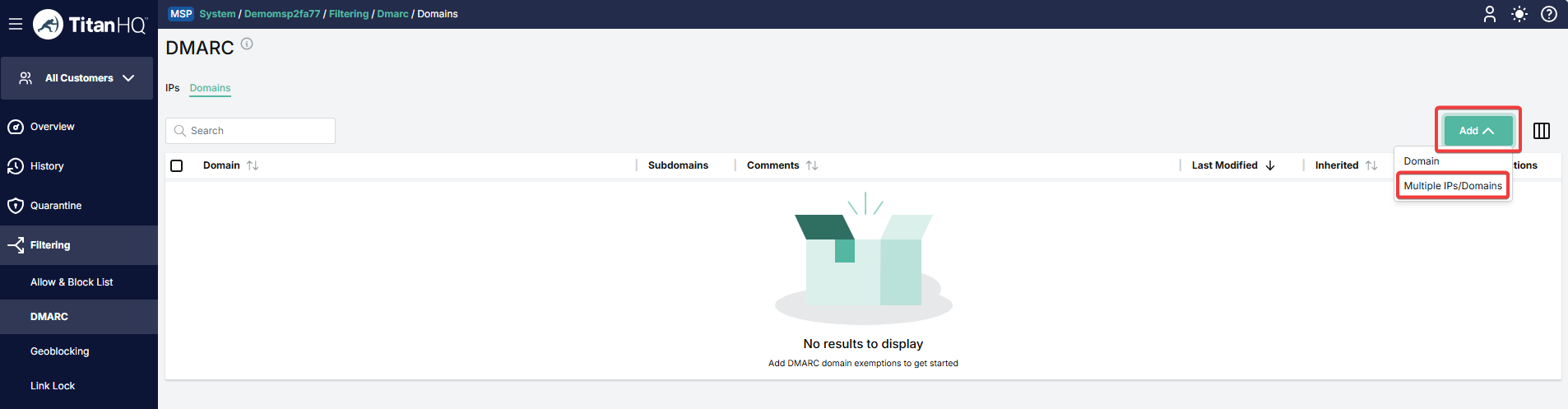
To add multiple entries in bulk, go to Add > Multiple IPs/Domains.
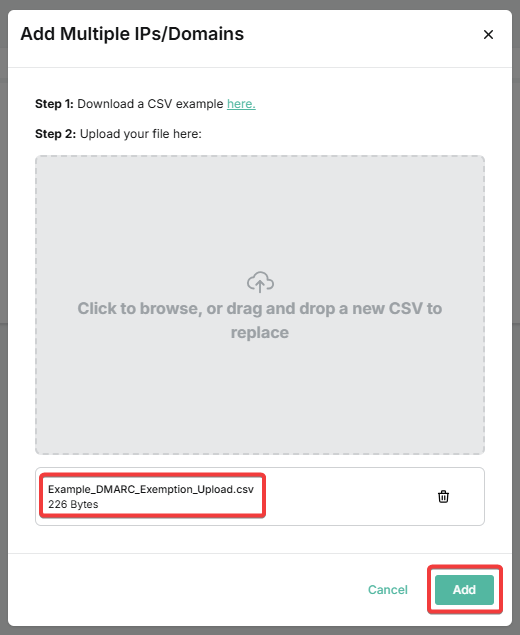
Download our example CSV file and populate it with your own entries. You can include IP addresses and domains in the same file. When you're ready, upload your file and click Add.
Your new entries will now appear in the table. If your file contained both IP addresses and domains, there will be entries in both tables (IP and Domain).


How to edit a DMARC exemption
1. Locate the exemption in the table. You can also use the search field.
2. In the Actions column, click on the edit icon.

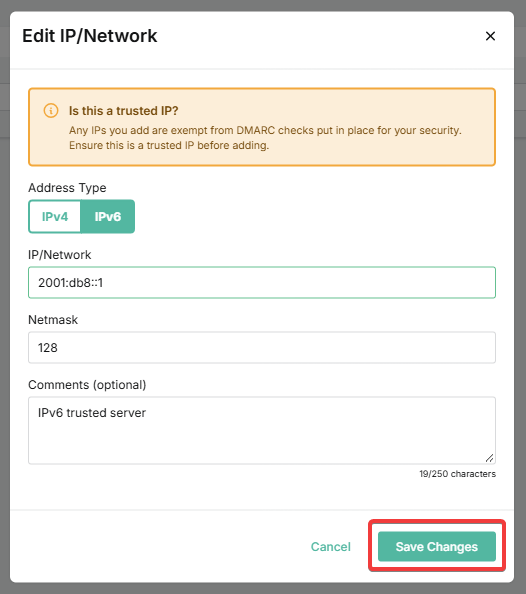
3. Update the details as needed and click Save Changes.
Note: If an exemption is inherited, the customer or domain admin cannot edit it.
How to delete a DMARC exemption
1. Locate the exemption in the table. You can also use the search field.
2. Check the box to the left of the entry for this exemption.
3. Click Delete at the top right.

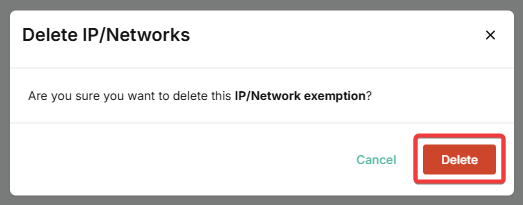
4. Click Delete to confirm.
Note: If an exemption is inherited, the customer or domain admin cannot edit it.