
Symptom
A SharePoint site backup fails within about one second with the error "Access to site has been blocked on AccountId=<account ID>". This only affects single sites, not an entire backup set. Other sites in the same backup set complete without errors. Retrying the backup gives the same result.
Cause
The site is blocked in the Microsoft 365 tenant, so Microsoft refuses every request to the site, including requests related to the backup task.
This is usually caused by one of the following:
- The site is locked with "No access". A SharePoint administrator can lock a site so nobody can open it, as explained on Microsoft's knowledge base here: Lock and unlock sites - SharePoint in Microsoft 365 | Microsoft Learn. A site can also be locked if user permissions for it have been removed, or inheritance of permissions has been stopped.
- The site is archived with Microsoft 365 Archive. Archived sites cannot be read until they are reactivated.
The failure is not caused by Redstor app permissions. If the permissions were missing, every site in the backup set would fail.
Solution
To resolve this, you will need to determine If the site has been locked, archived, or neither. To do this:
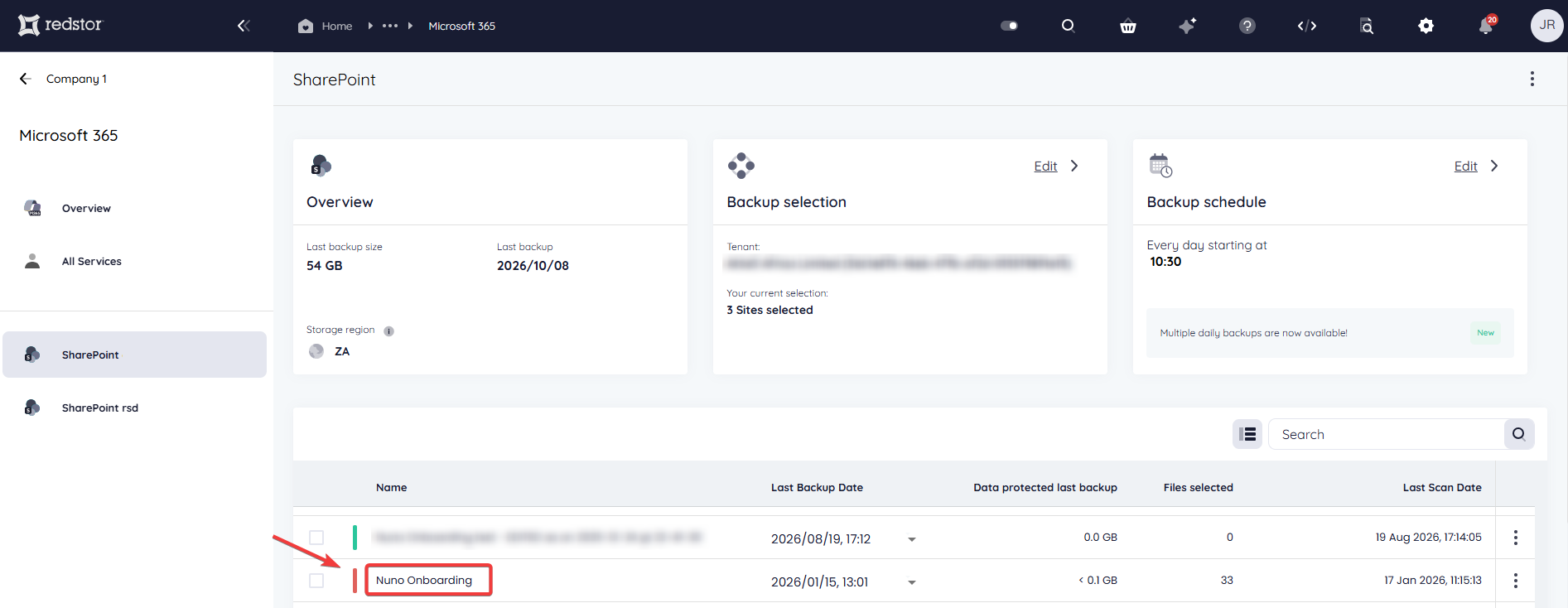
1. Find the site name. In the RedApp, open the failing backup account. The account name is the SharePoint site name.
2. In SharePoint Online PowerShell:
- Connect with
Connect-SPOService -Url https://<tenant>-admin.sharepoint.com - Run
Get-SPOSite -Identity <site URL> | Select Url, LockState, ArchiveStatus- A
LockStateofNoAccessmeans the site is locked. AnArchiveStatusother thanNotArchivedmeans the site is archived.
- A
Archives sites can also be checked in the SharePoint admin center under Sites > Archived sites.
3. Proceed based on whether or not you want to keep backing up the site.
You want to keep backing up:
- If the site is locked, unlock it. In SharePoint Online PowerShell:
Set-SPOSite -Identity <site URL> -LockState Unlock - If the site is archived, locate it under Sites > Archived sites in the SharePoint admin center and reactivate it. Microsoft can take some time to reactivate a site, and may charge for it.
Once the site is unlocked or un-archived, the next scheduled backup will contain the site again. You do not need to change anything in the RedApp.
You want to stop backing up because you locked or archived the site deliberately:
Remove the site from the backup set by following the steps below. If you don't remove the site, every backup of the backup set will fail with this error.
To remove a site from a backup set:
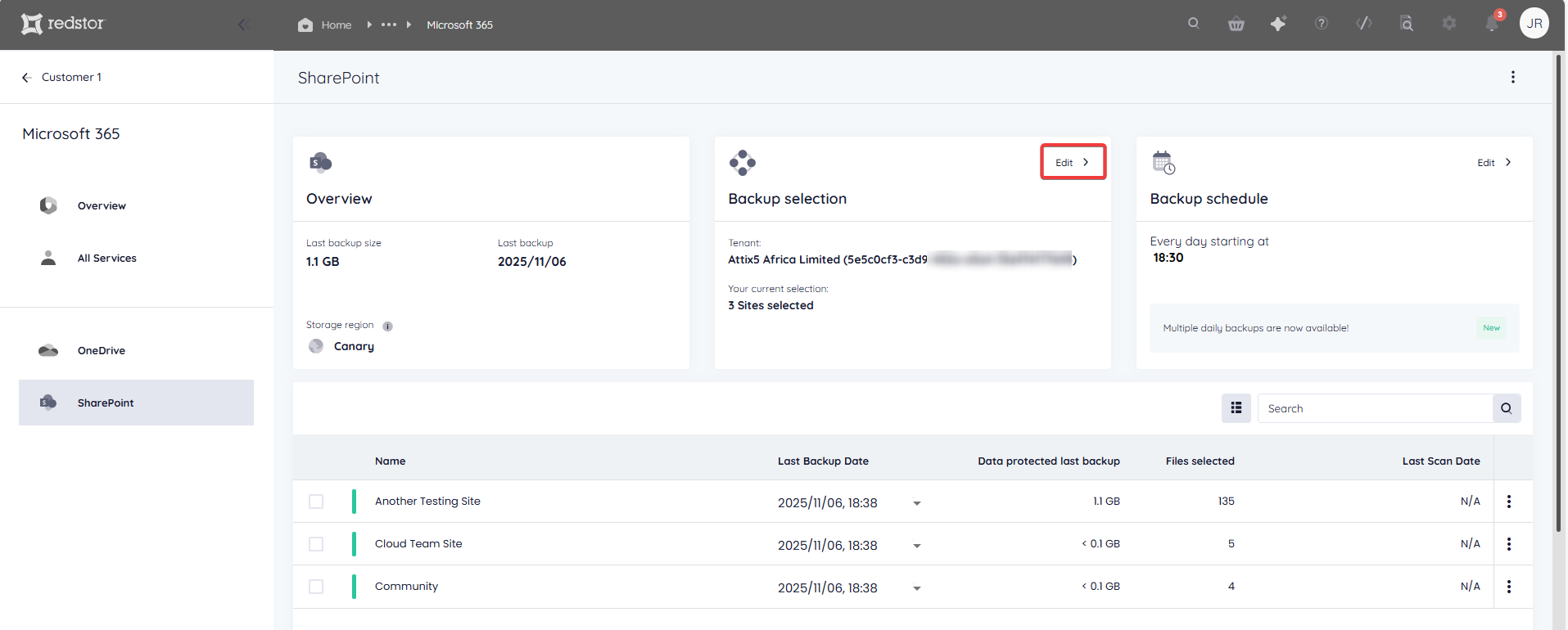
- On the backup set home page, go to Edit on the Backup selection card. You can also use the search field to find a specific site.
2. Deselect the sites you want to remove and click Save.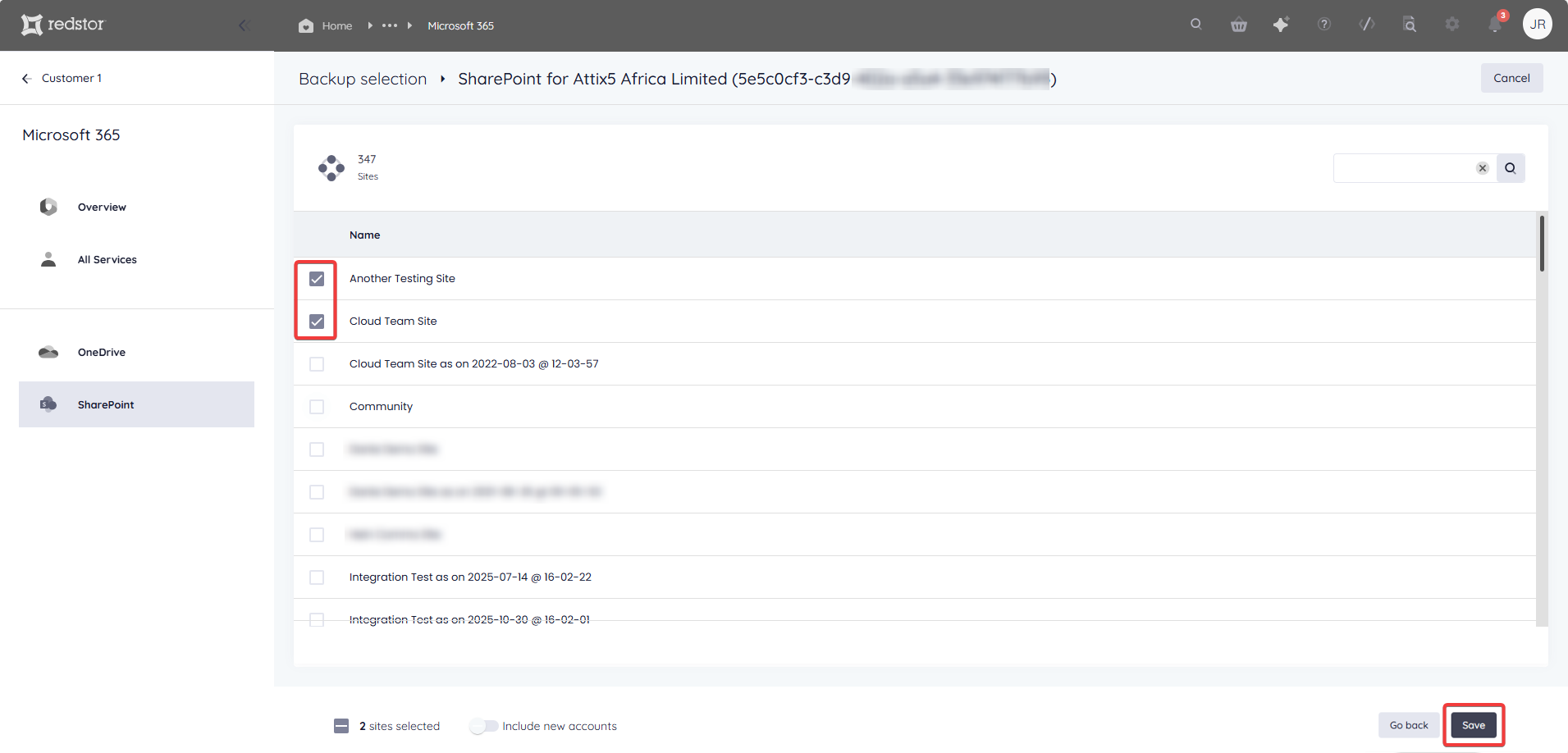
Data from the removed sites that is already backed up will remain available for restore under your retention settings.
If the site is neither locked or archived and the error persists, log a ticket with our support team. Include the site name and the time of a failed backup.