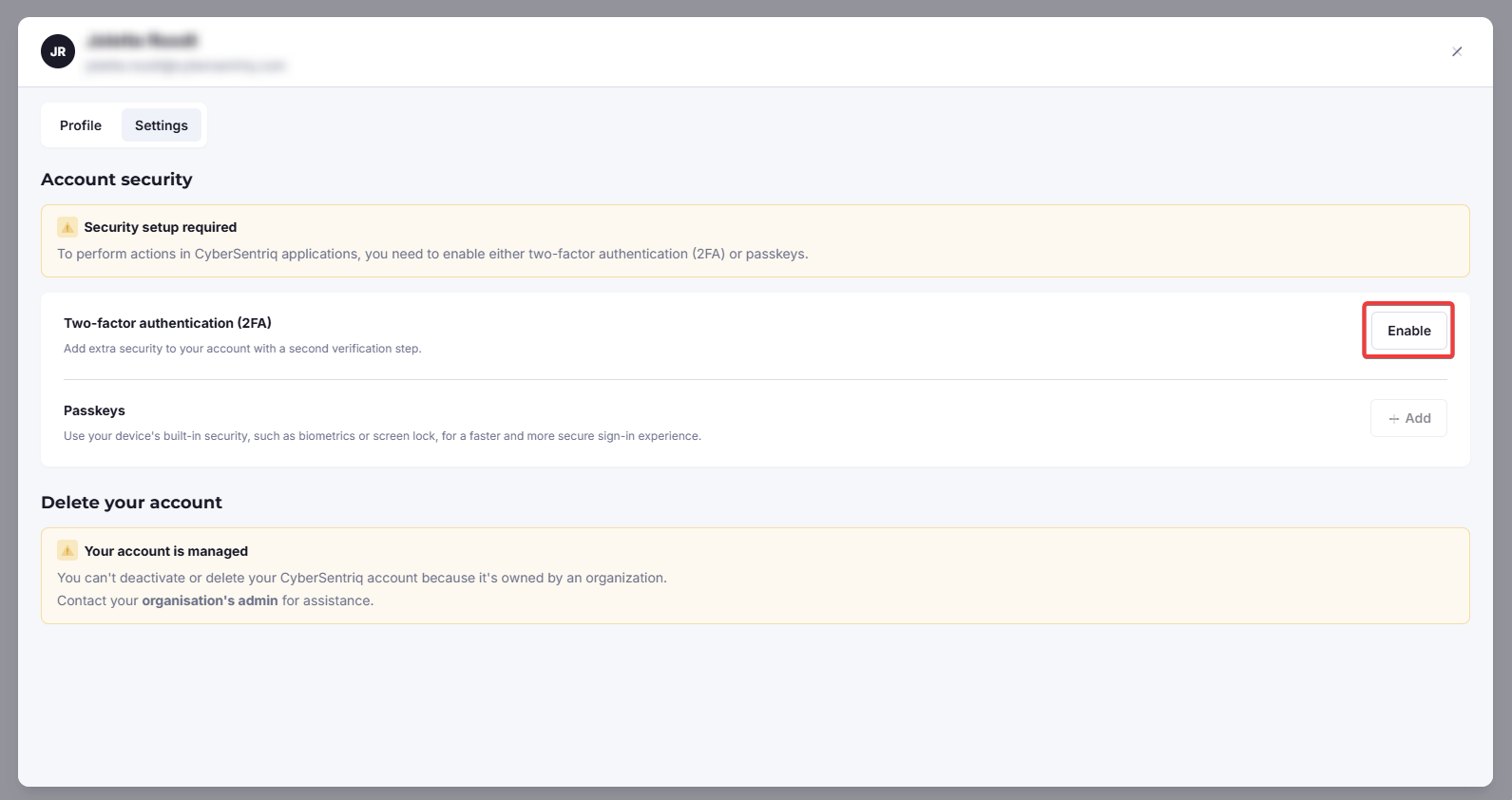
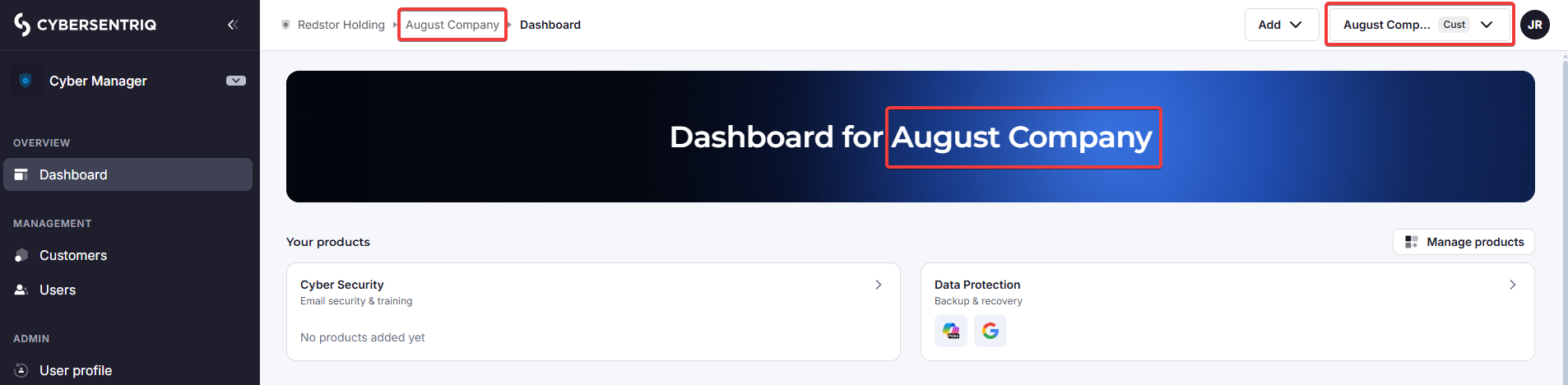
When you log into the SentriqAI Platform for the first time, you will land on a dashboard for the highest organization level your user has access to (in the example below, Redstor Holding). This organization is indicated at the top right of the page (the “currently viewing” field) as well in the breadcrumbs (i.e. the location path).
The SentriqAI Platform will open in the Cyber Manager workspace, which is one of three workspaces on the platform where you can perform actions.
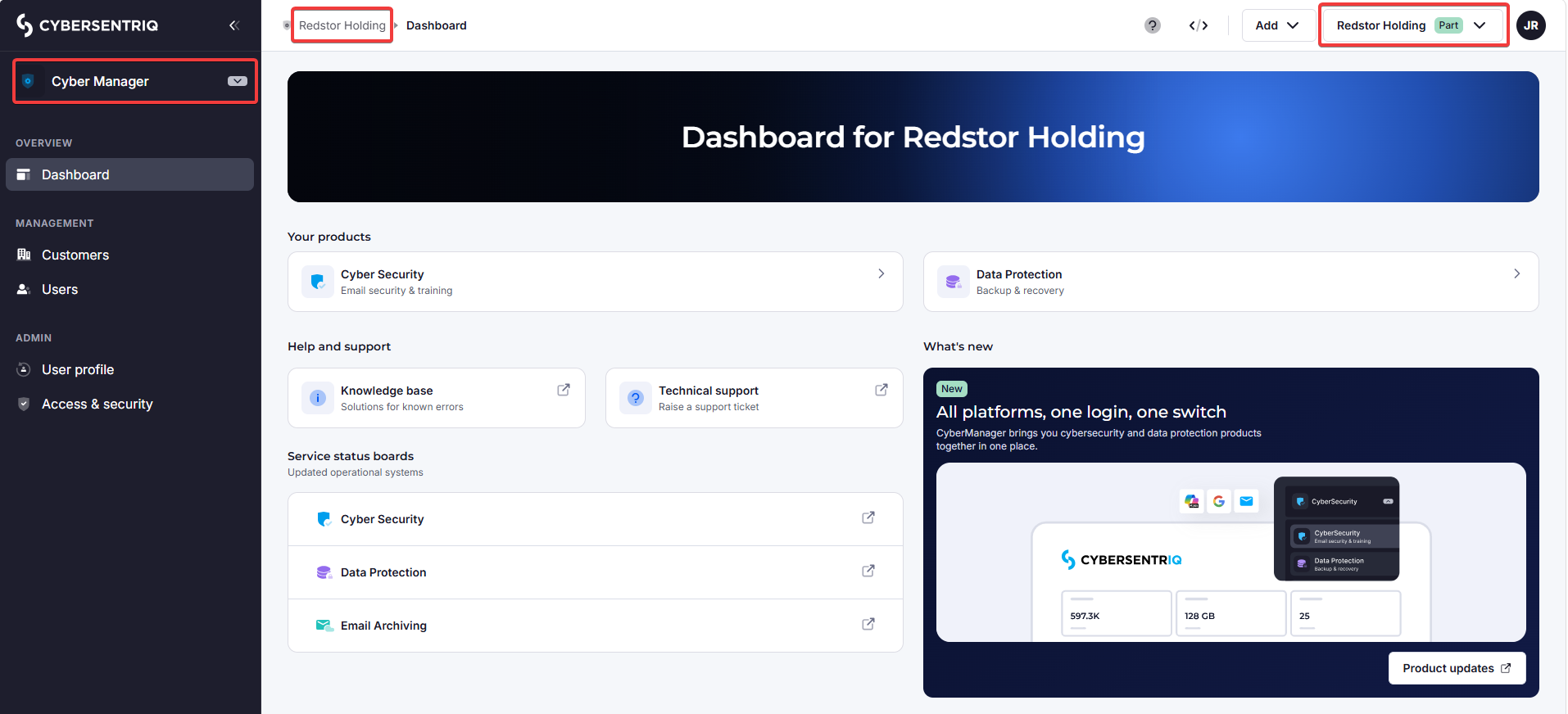
Cyber Manager is the overarching workspace where customers and users are managed for both Cybersecurity and Data Protection solutions. The other two spaces are for managing products in Cybersecurity and Data Protection respectively. You can switch spaces from the side navigation at any time. You can also access the Cybersecurity and Data Protection workspaces from the cards on the Cyber Manager dashboard.
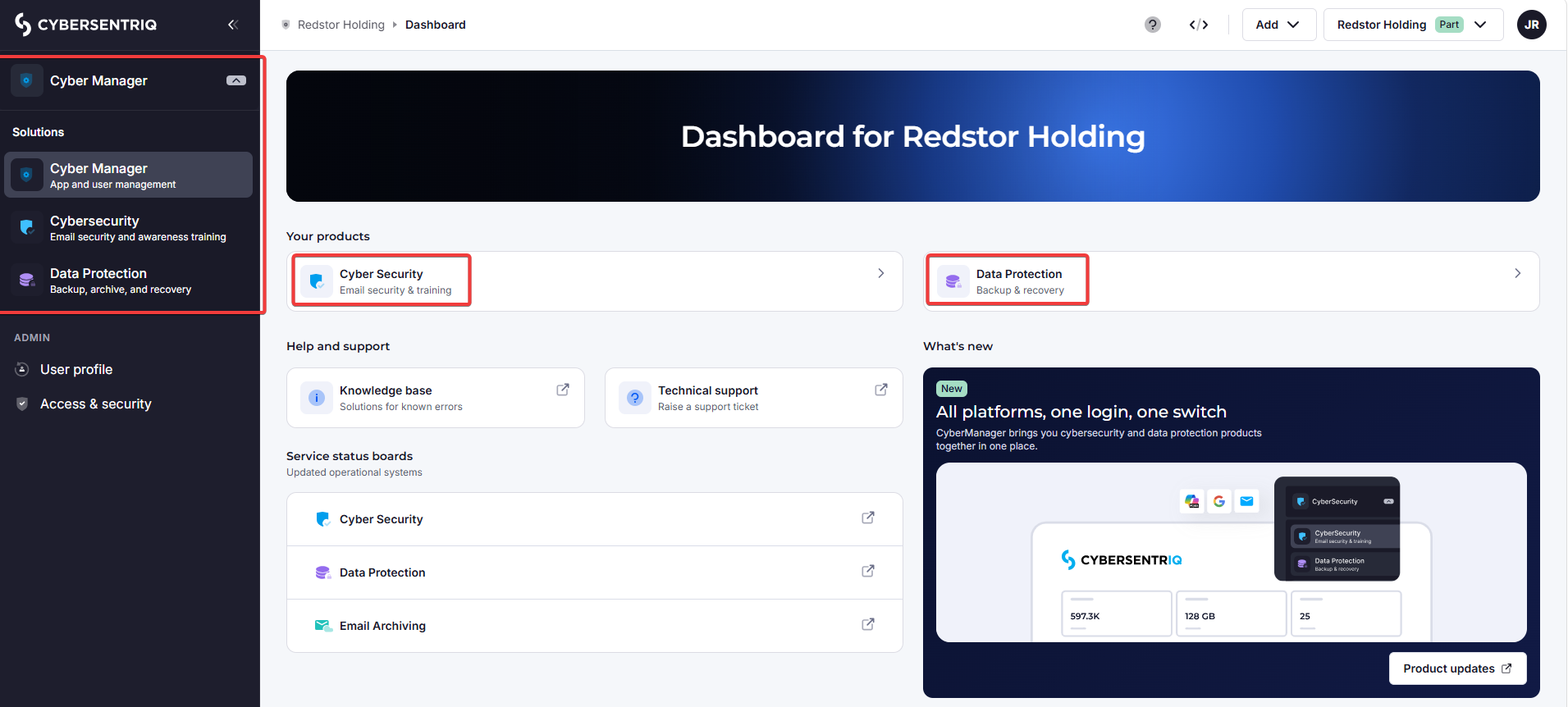
The top navigation is visible from all three workspaces. The top nav contains the following:
- Support links:
- Contact Support takes you to the form where you submit a support ticket.
- Help & Documentation takes you to the support portal (where you are reading this guide).
- A link to the Partner Portal.

- The Sentriq API icon, which takes you to the CyberSentriq developer hub (API documentation).
- An Add button for adding customers, users or products.
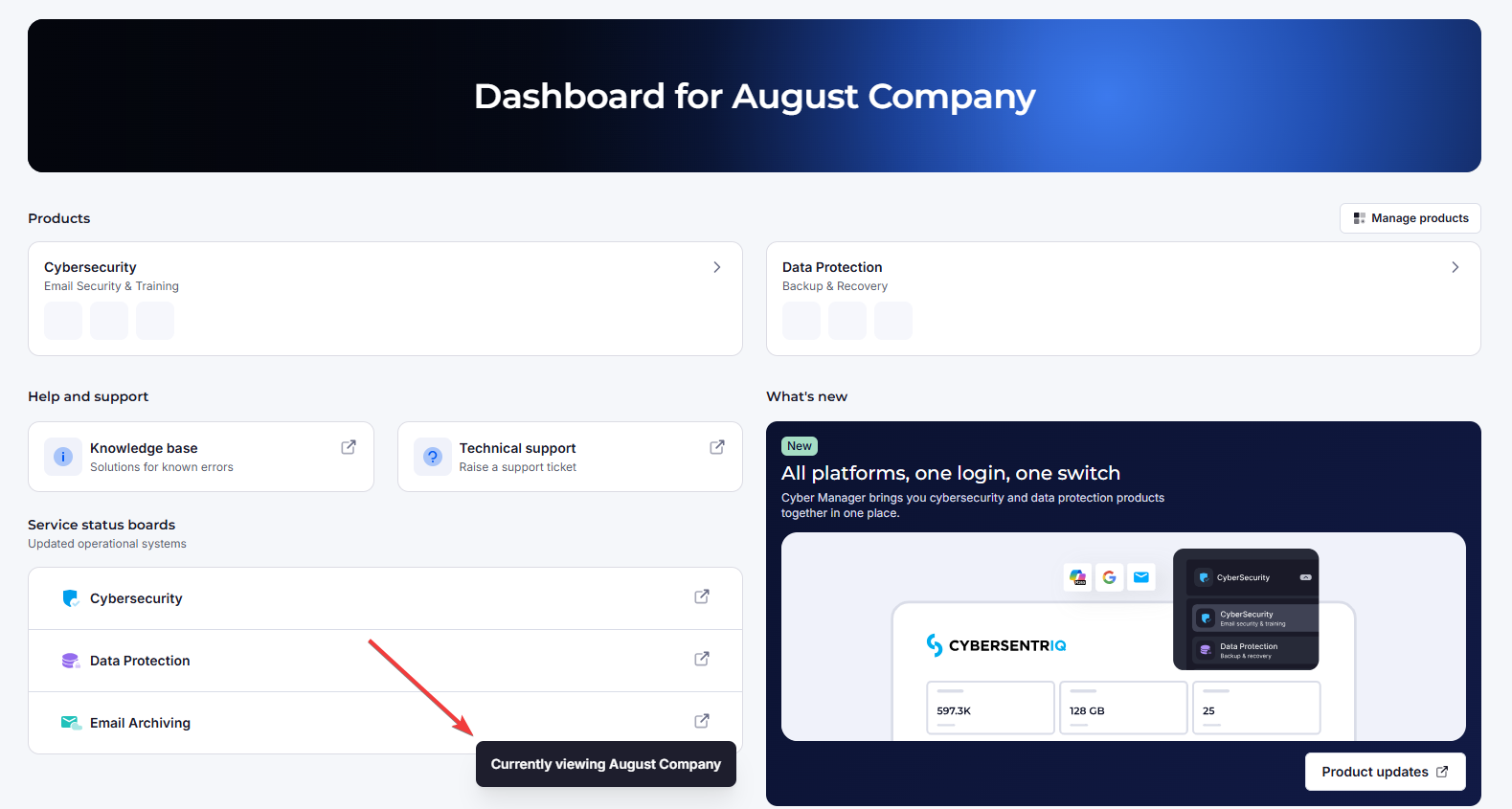
- The Add button always applies to the company you’re currently viewing (shown to the right of the button). Any time you change the company, you'll see a notification at the bottom of the page.
- Products cannot be added at the Partner level (only Customer level).
- For CyberSecurity products, licenses are added at the Partner level only. Licenses do not apply to Data Protection products.
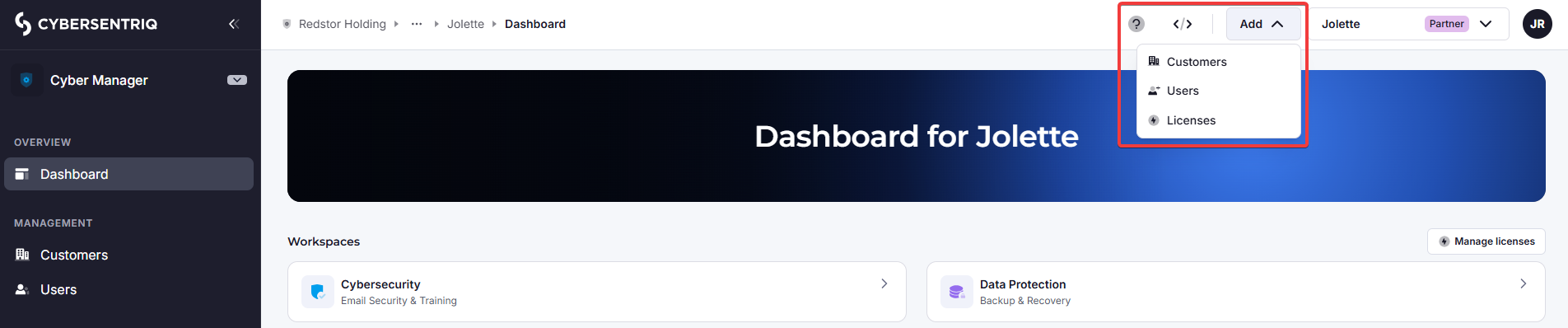
- The Add button always applies to the company you’re currently viewing (shown to the right of the button). Any time you change the company, you'll see a notification at the bottom of the page.
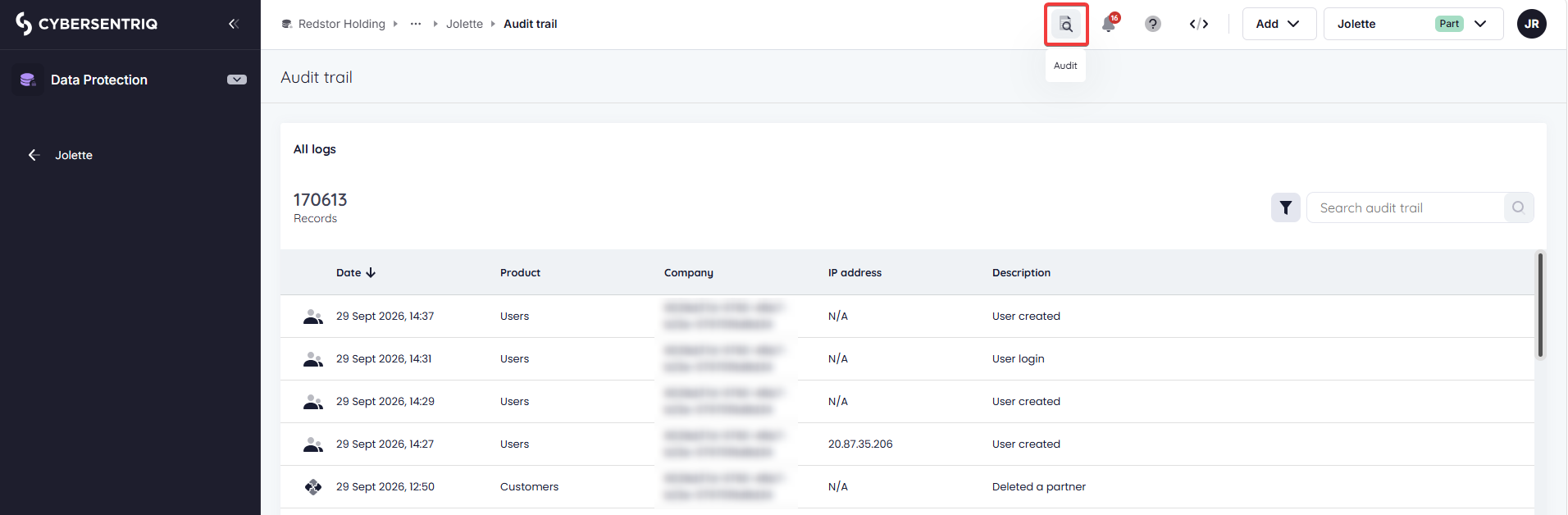
In the Data Protection workspace only, the top nav also includes an audit trail icon and a notifications icon.
Click on the audit trail icon to see recent actions performed on the platform.
Click on the notifications icon to see recent notifications in a slide-out panel.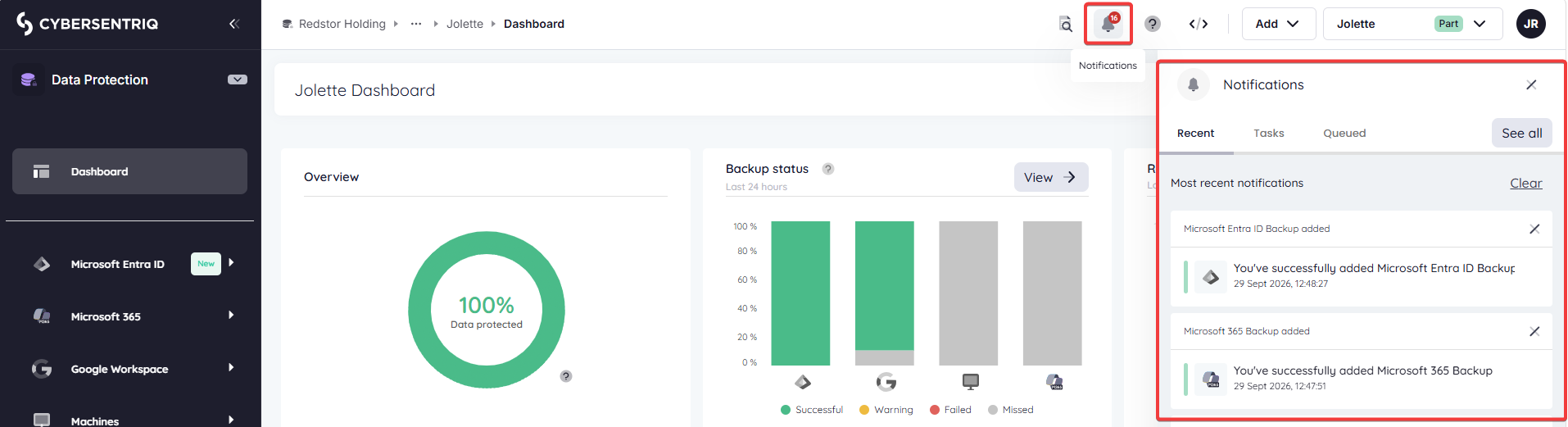
From the top nav, you can switch the organization level you are viewing. If you expand the switcher dropdown, you will see a list of customers one level down from where you are, i.e. the current organization’s direct customers.
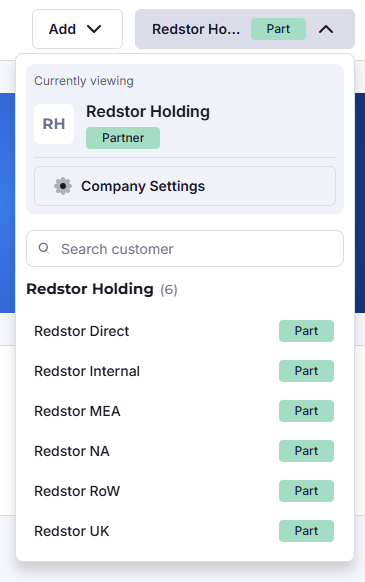
Click on any customer name to expand a list of their downstream customers.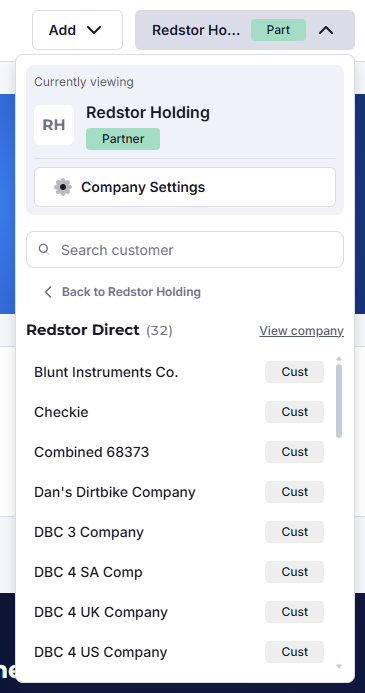
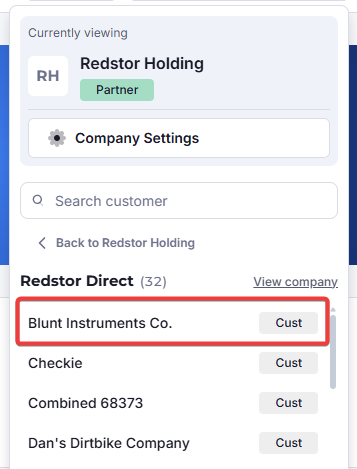
To go to the dashboard for a downstream customer, click on their name.
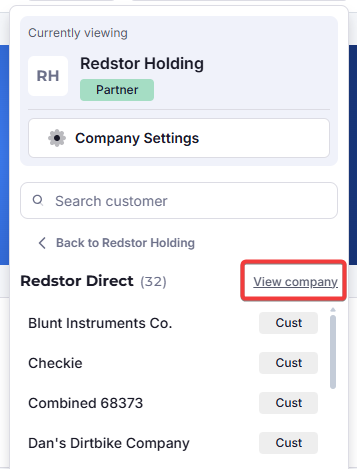
To go to the dashboard for the direct customer, click on View company.
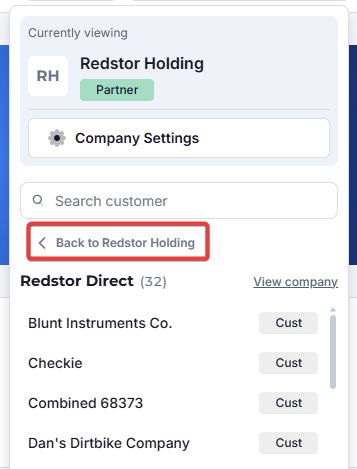
To go to the dashboard for the top-level organization, click on Back to [company name, in this example Redstor Holding].
On both Partner and Customer level, the dashboard will look the same when you are in the Cyber Manager workspace, but the breadcrumbs, “currently viewing” field, and welcome banner will reflect where you are.
Click on the three dots to see all levels of the location path to where you are. Click on an organization name to go to its dashboard.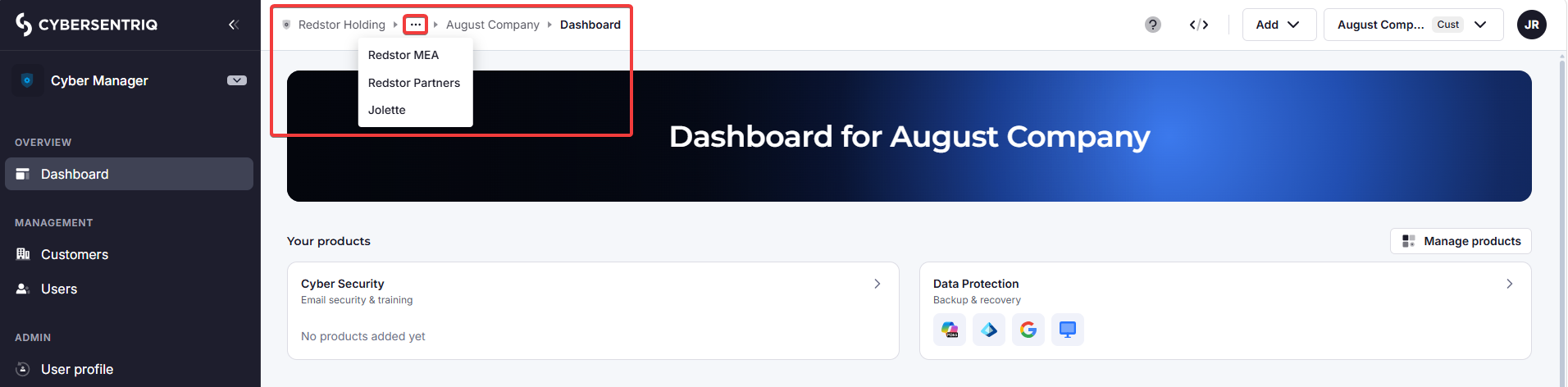
To access your user profile, go to your avatar at the top right and click on Profile.
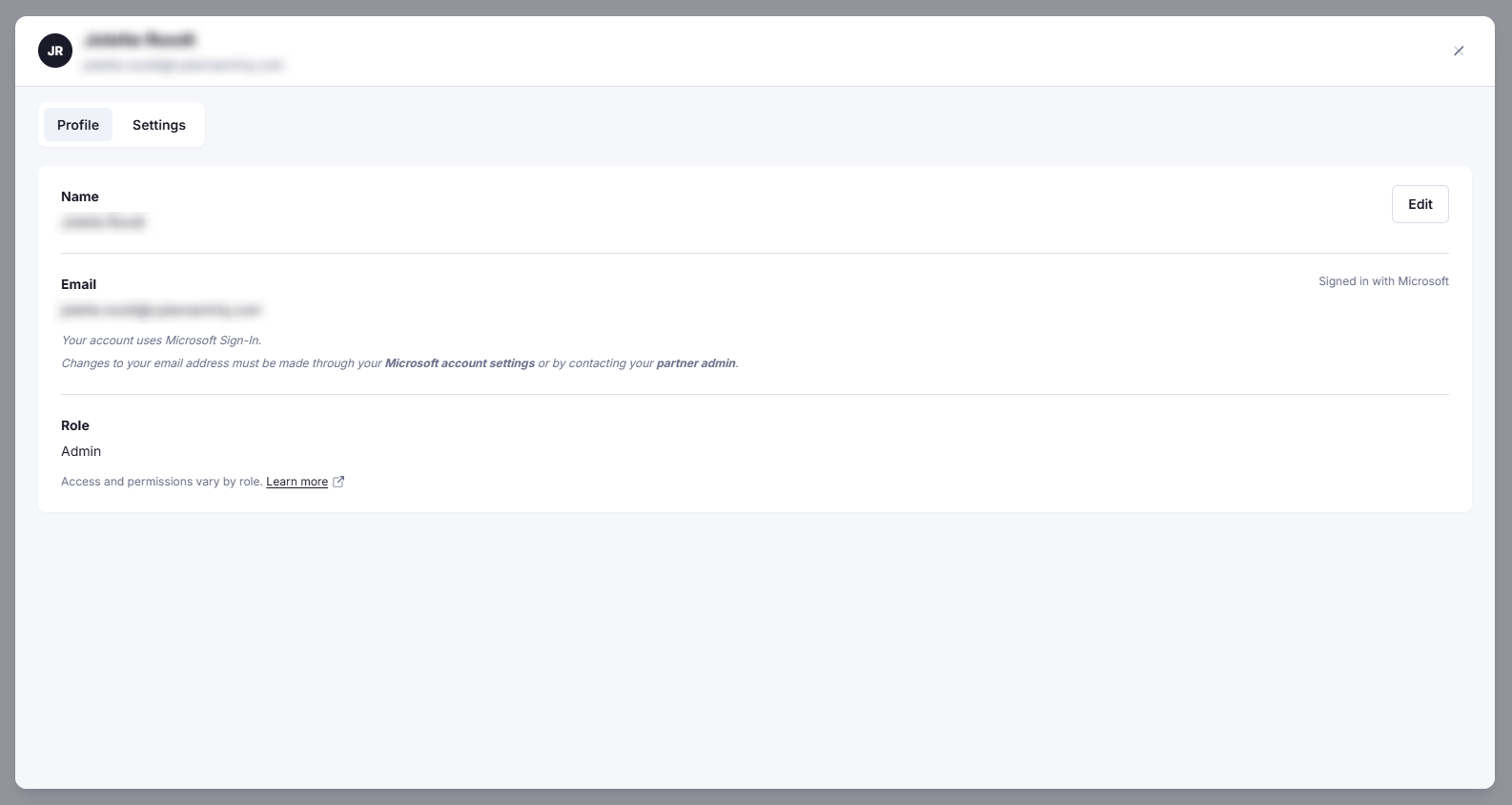
There are two tabs, Profile and Settings.
Under Profile, your can see your name, email and role on the platform. If your organization uses SSO for sign-in, you will not be able to edit your email address from here.
Under Settings, you can enable 2FA, which is required when performing destructive actions such as deleting another user. (It is not possible for a user to delete their own user.)