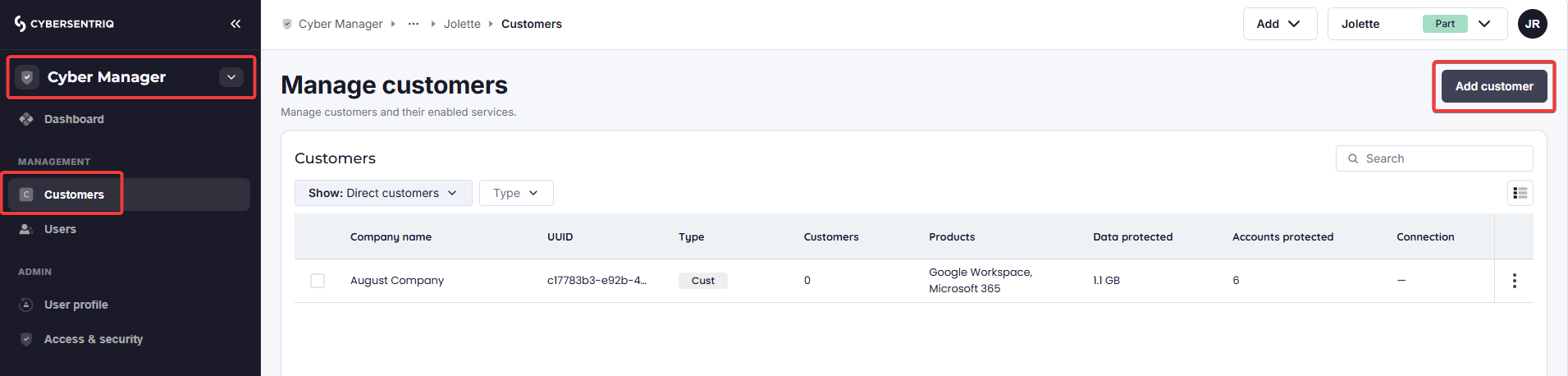
Firstly, ensure you are in the Cyber Manager workspace for the organization you want to add a customer to. Go to Customers in the side navigation, then click on Add customer at the top right.
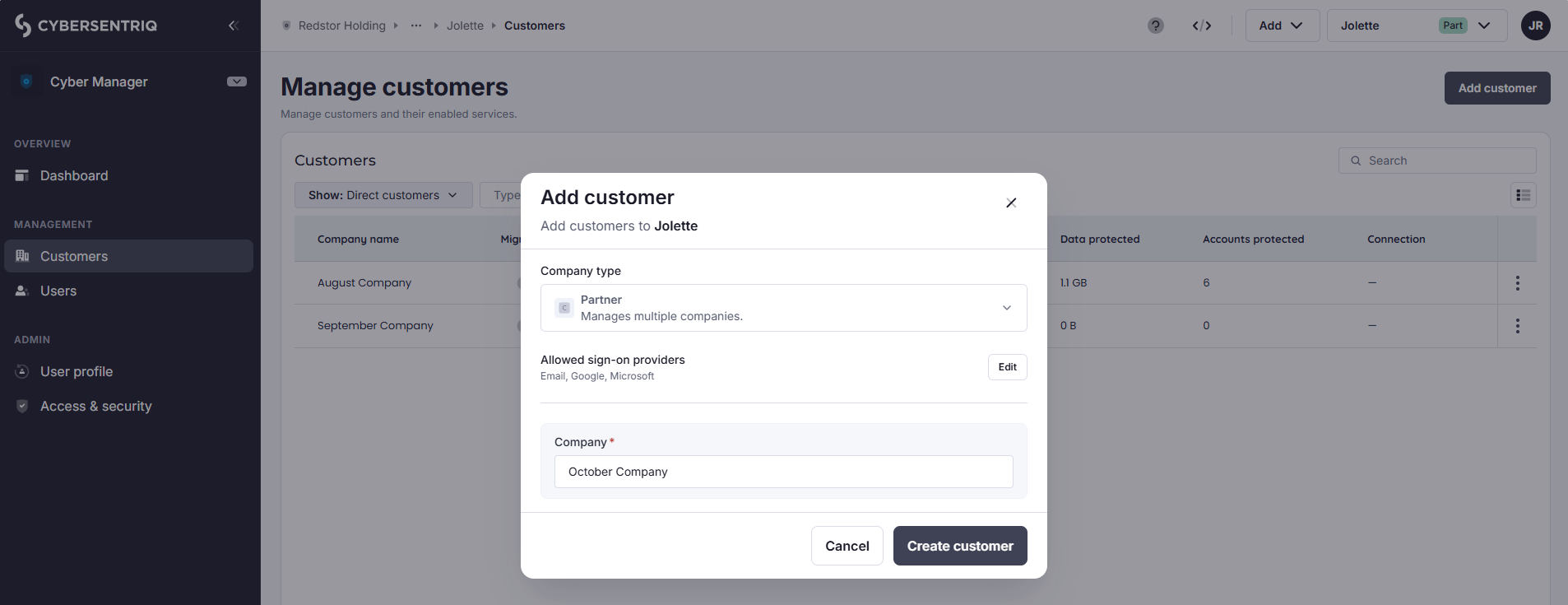
Specify the organization type you want to create (Customer for the lowest level/end customer, Partner for everything else) and click Create customer.
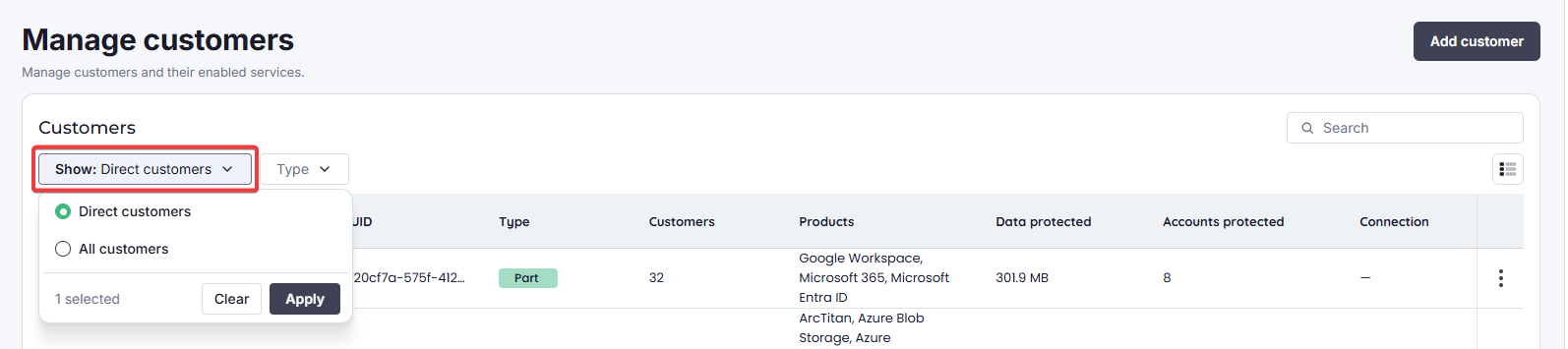
The customer will now appear on your Manage customers page. In the customers table, you can choose to see only direct customers, or all customers (downstream included).
What is available in the three-dot menu to the right of a customer entry depends on the type of organization.
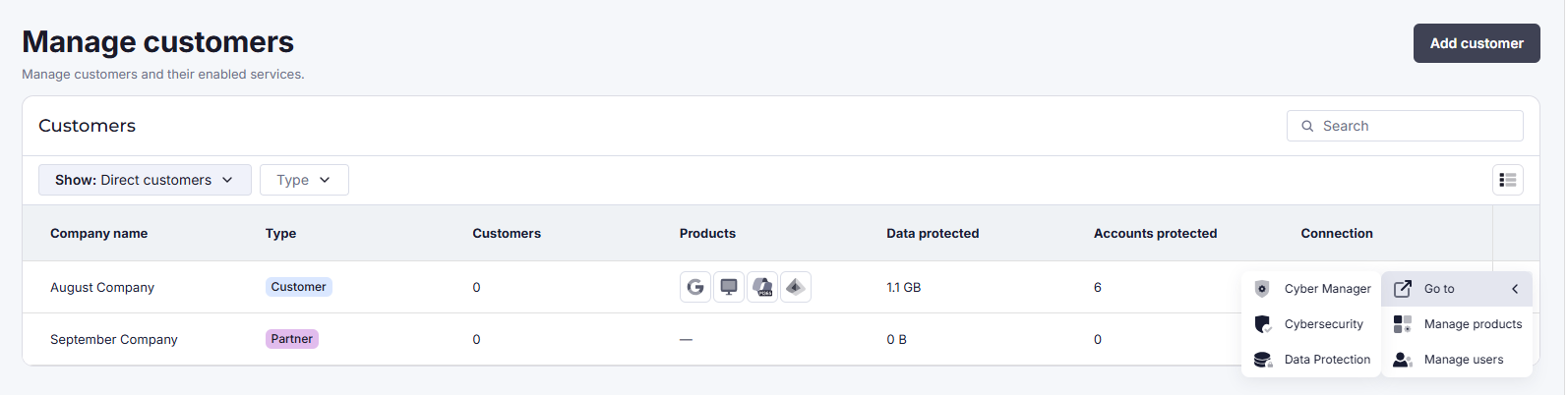
The menu for a Customer includes:
- Go to (any of their three workspaces)
- Manage products
- Manage users
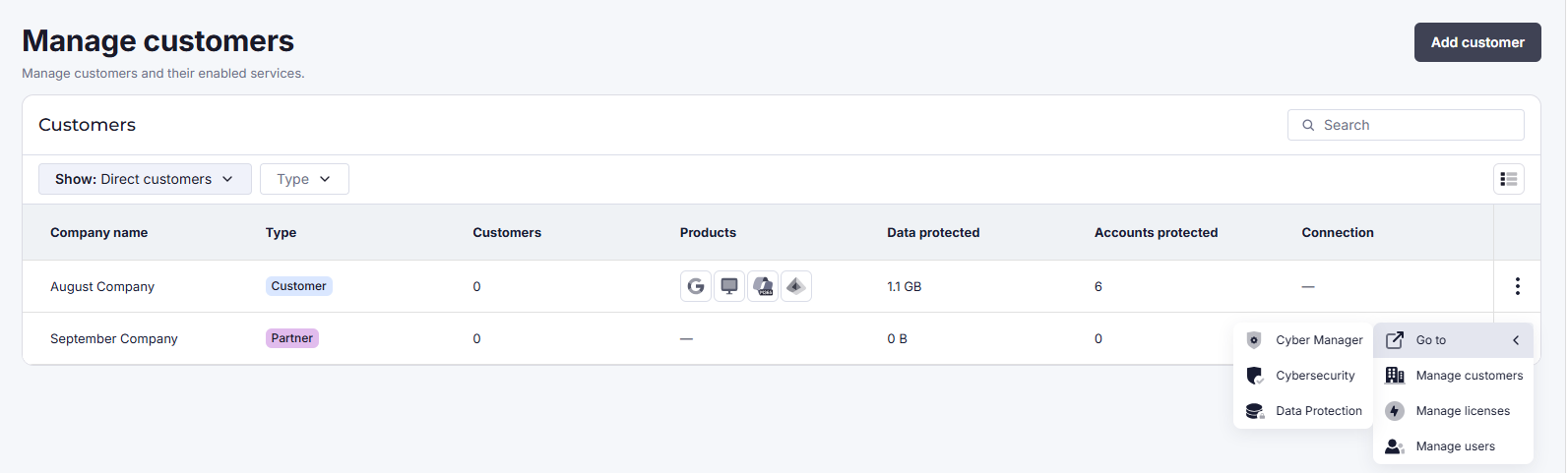
The menu for a Partner includes:
- Go to (any of their three workspaces)
- Manage customers
- Manage licenses
- Manage users
Products can only be added to Customers, not to Partners. At partner level, you can allocate licenses to distribute to subpartners or add products for customers. Licenses are only relevant to Cyber Security products.
It is not currently possible to delete a Partner or Customer using the SentriqAI Platform. For deletions, please contact your account manager or service provider.
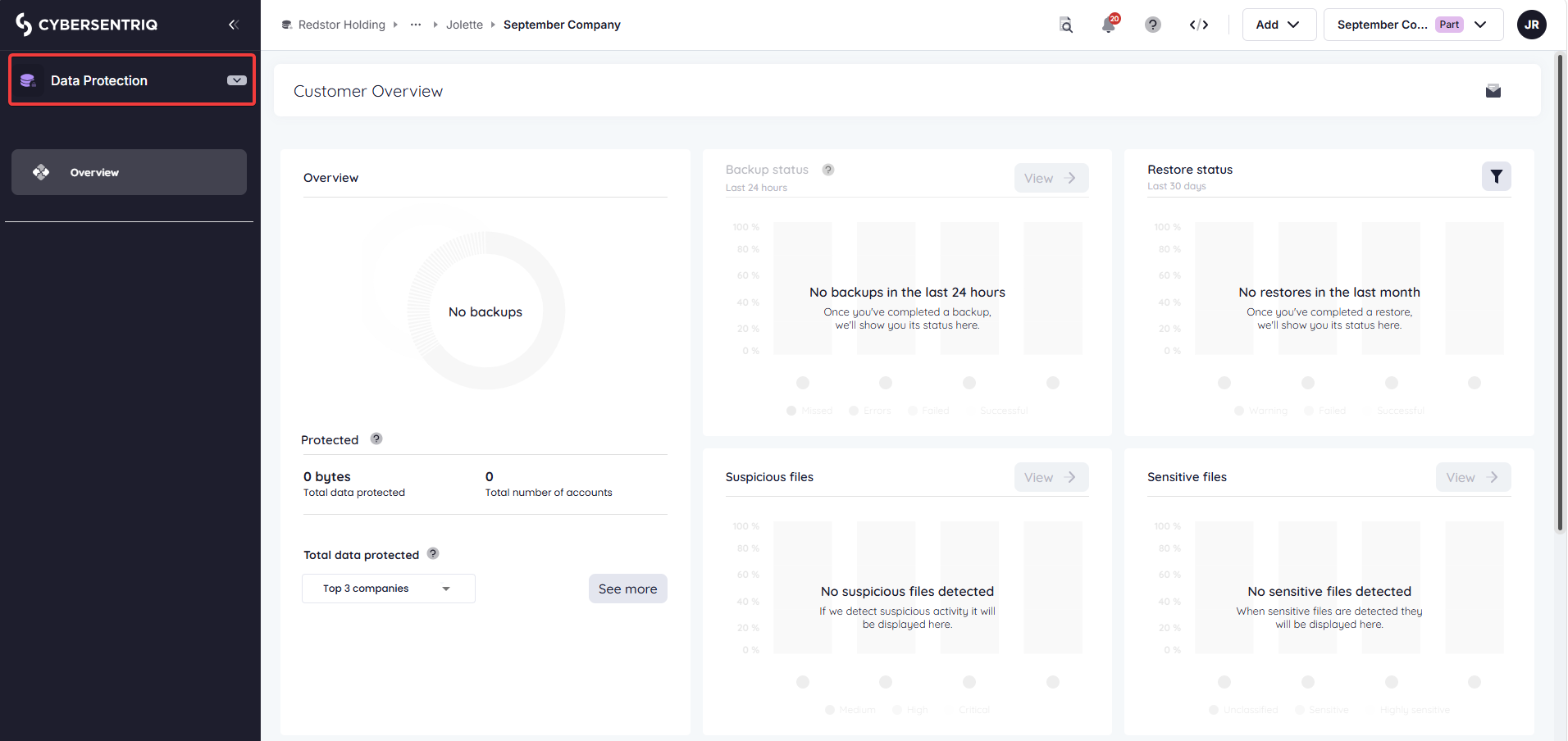
For both organization types, the Go to option takes you to whichever workspace you choose. For example, if you go to Data Protection from a customer’s menu, you will be taken to that customer’s Data Protection dashboard. There will be no data to display until you add products (or Customers, if this is a Partner) to this organization.