
PAGE CONTENTS
How to add a product to a customer
Note: Products can only be added to the Customer organization type, not to the Partner type.
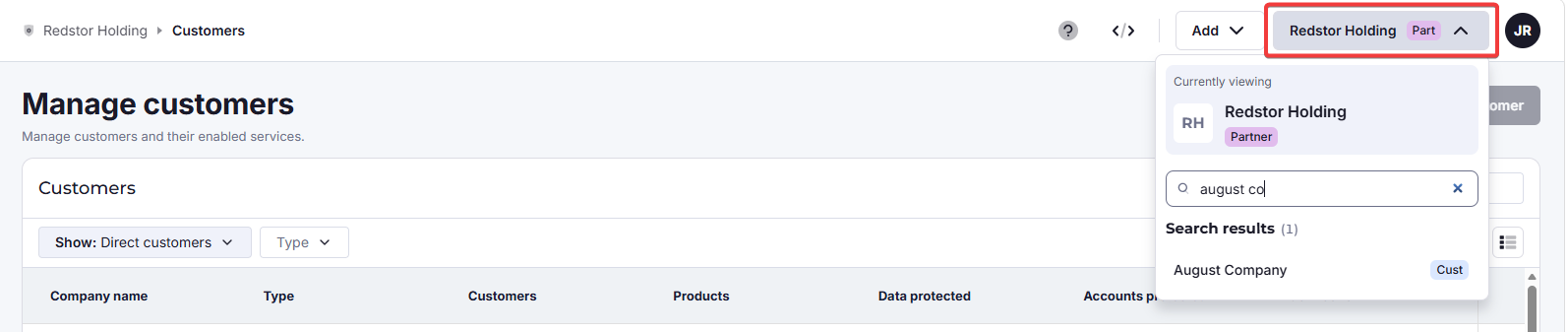
1. Go to the customer dashboard. The easiest way to do this is to search from the "currently viewing" field at the top right.
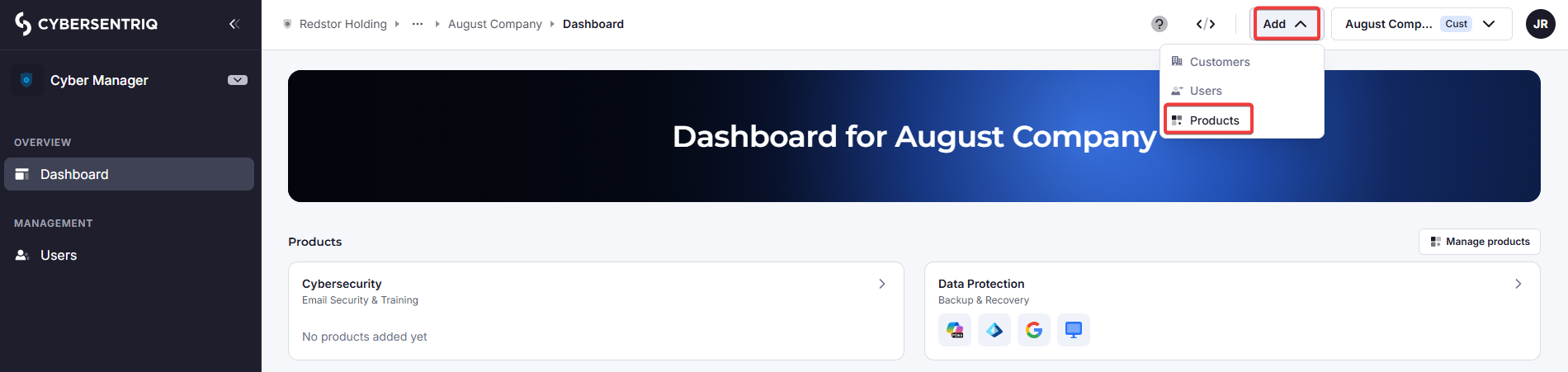
2. Once you're on the customer dashboard, click on Add > Products in the top navigation.
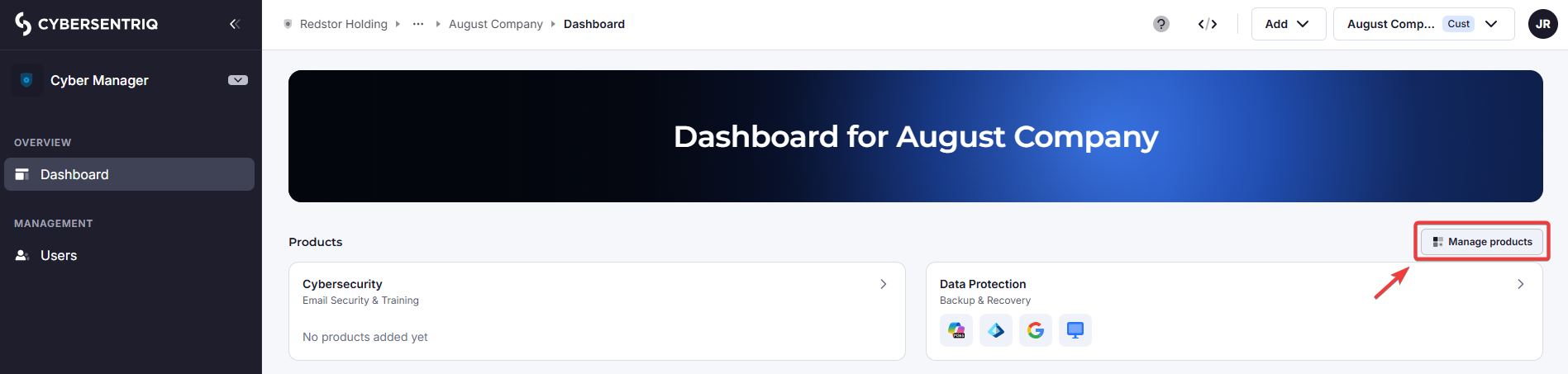
You can also click the Manage products button (to the right, above the solution cards).
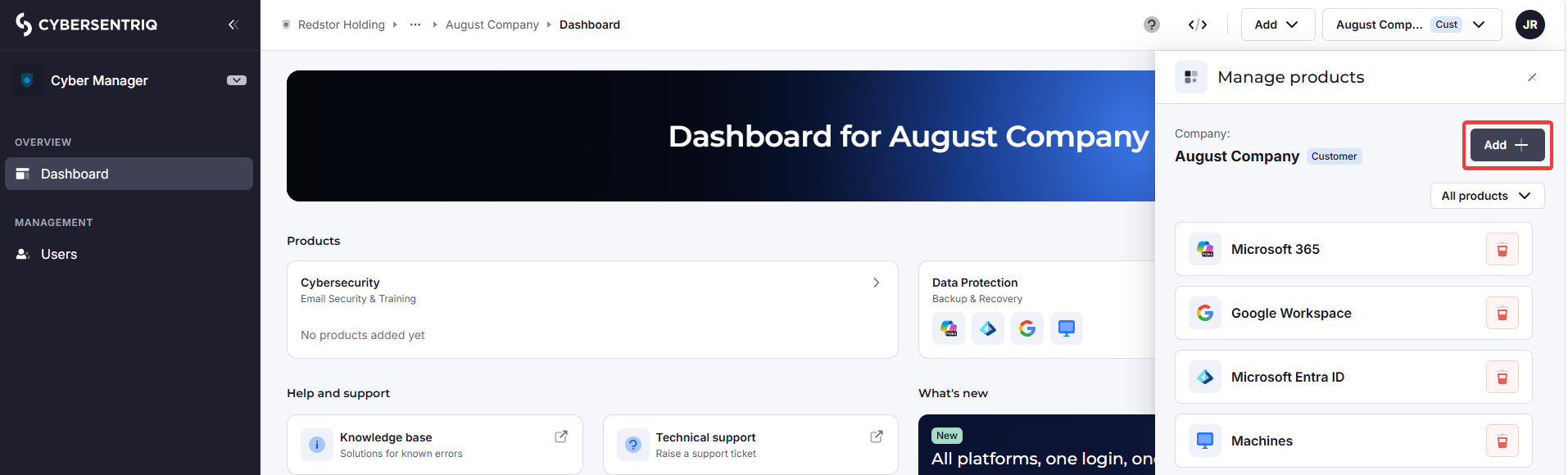
3. You will see a list of products this customer already has. Click Add + to add another. (You can also click the bin icon on any product to remove it.)
4. You will see a list of products this customer does not have yet. Click on All products to narrow down the product selection to Cybersecurity or Data Protection.
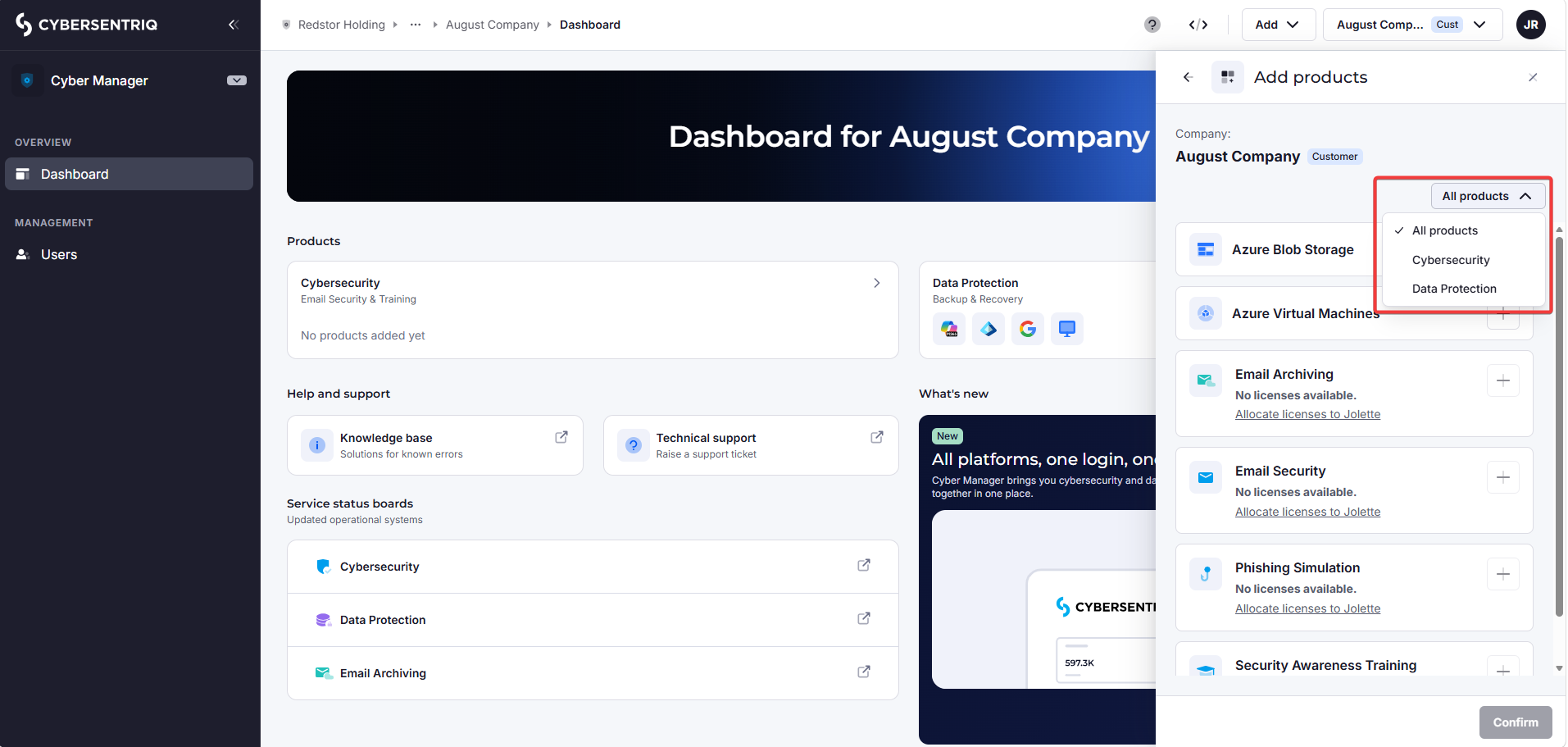
5. Proceed according to your product area.
If you select Data Protection:
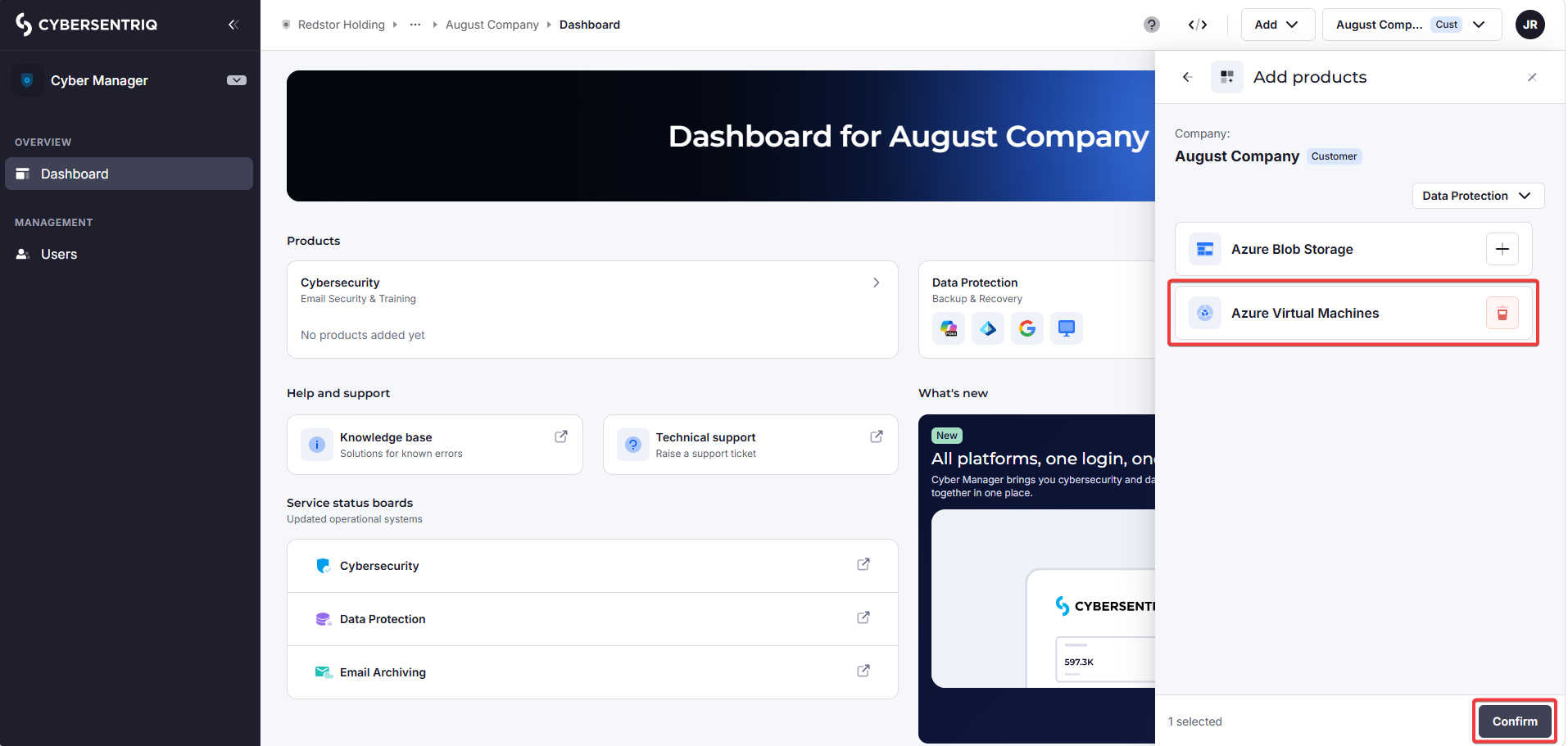
You will see a list of products this customer does not have yet.
Click the + next to each product you want to add, then click Confirm at the bottom right.
In this example, we are adding Azure Virtual Machines.
Click the bin icon to un-select a product for addition.
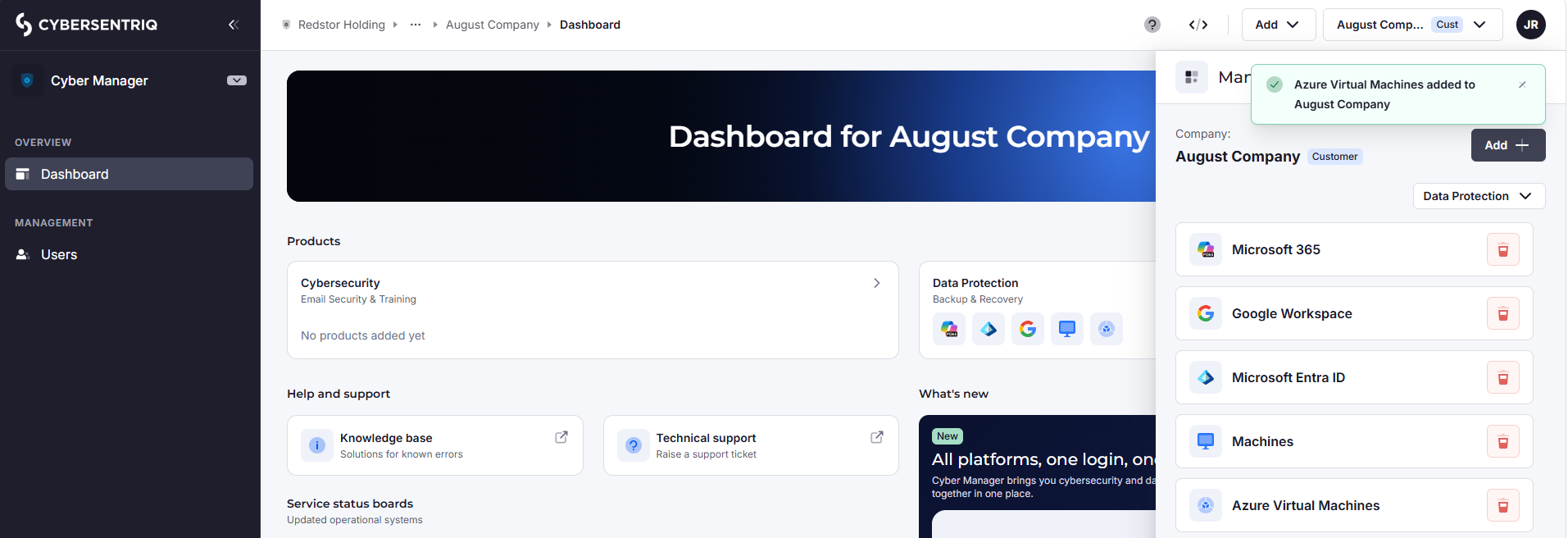
You will now see an updated list of the products this customer has, here still filtered to only Data Protection products.
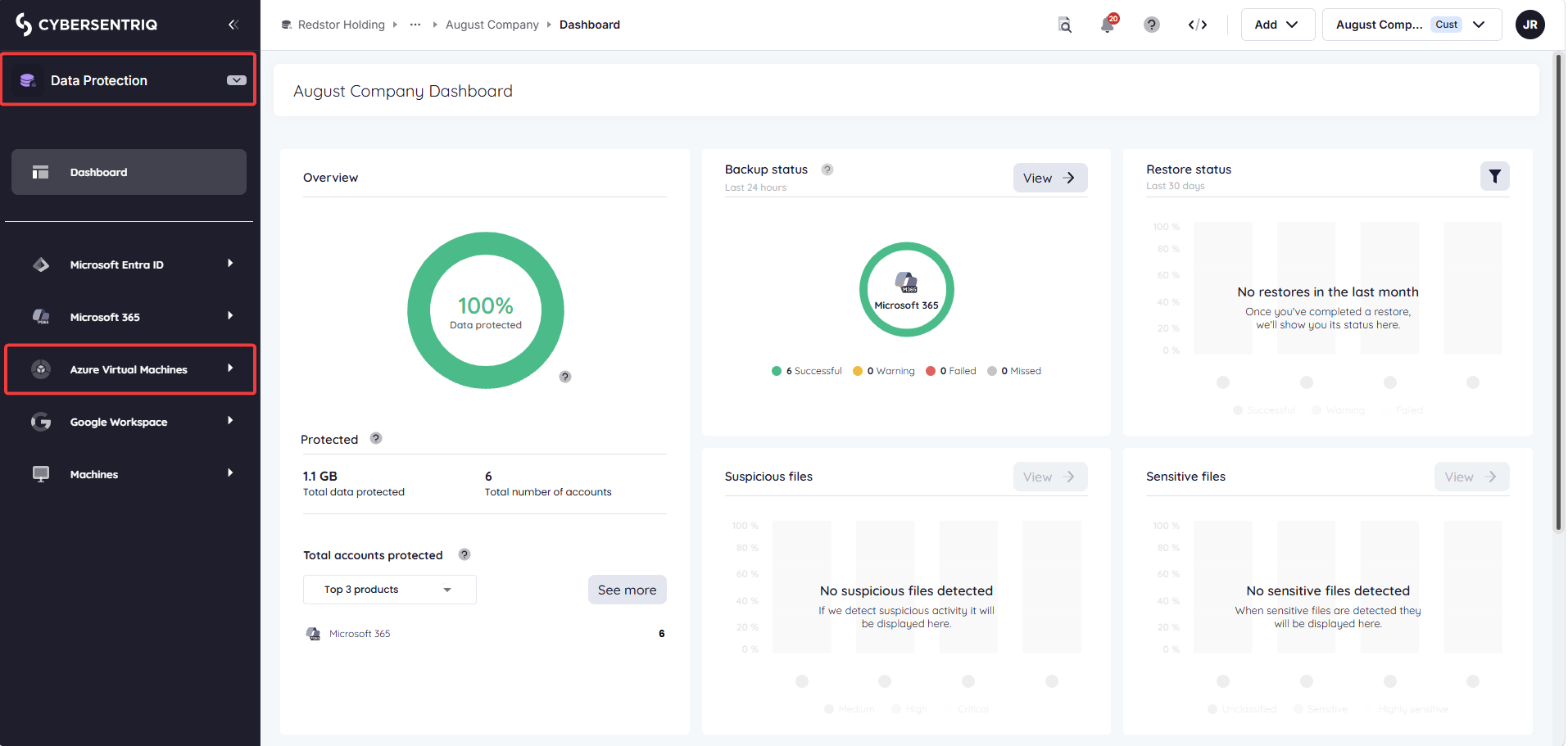
If you go to this customer’s dashboard in the Data Protection workspace, you will see the new Data Protection product in the side navigation.
You can now start adding backup sets for your products. Depending on what you added, you may want to consult our support articles on machine backup and cloud products. You can always search our backup and recovery knowledge base if you need help.
If you select Cybersecurity:
You will see a list of products this customer does not have yet. In this example, the customer (August Company) has no Cybersecurity products yet, so all Cybersecurity products are shown.
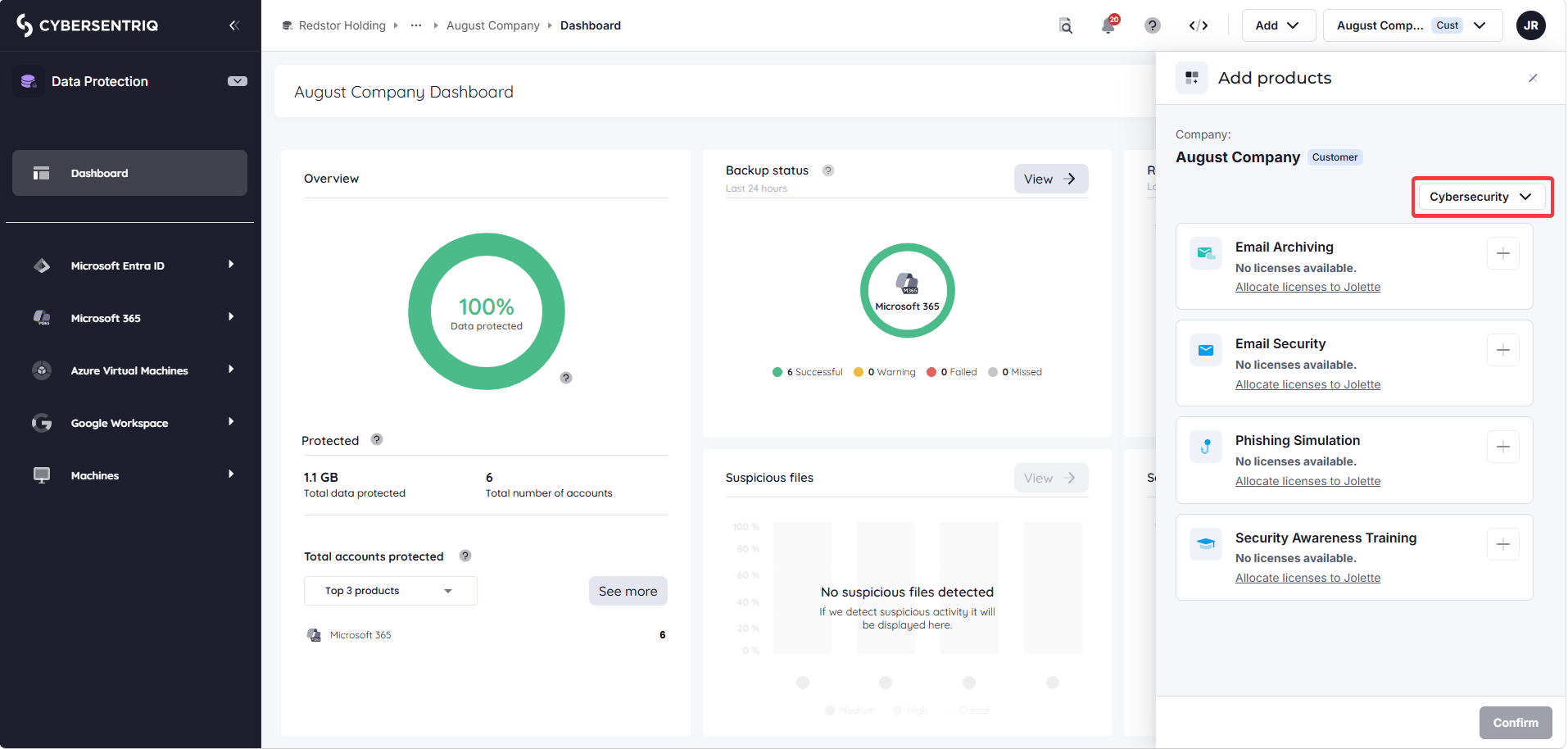
In order to add a Cybersecurity product to a customer, the customer's parent partner (in this example, Jolette) must have licenses available which they can assign. If the parent does not have licenses available, their own parent partner needs to assign them these. Depending on your organization structure, there may be additional upstream levels.
In each scenario, there will be a link under the product listing which goes to the level where licenses need to be added.
You will only be able to access the organizations for which your role has permissions.
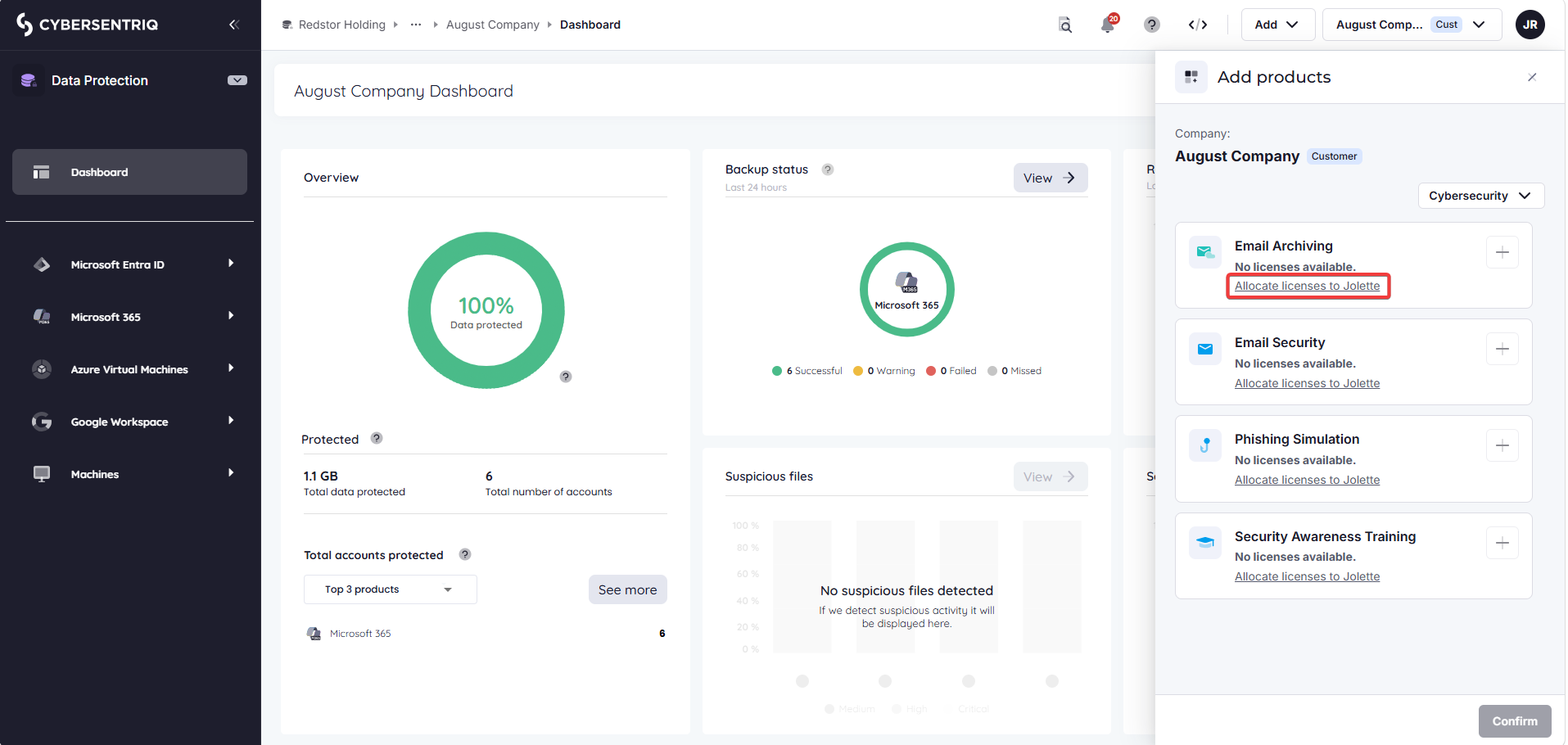
In this example, if you click on Allocate licenses to Jolette (the parent partner of August Company) under the product listing for Email Archiving, you will be taken to the Licenses slide-out for the partner Jolette. Enter a number under Email Archiving > Licenses and click Update.
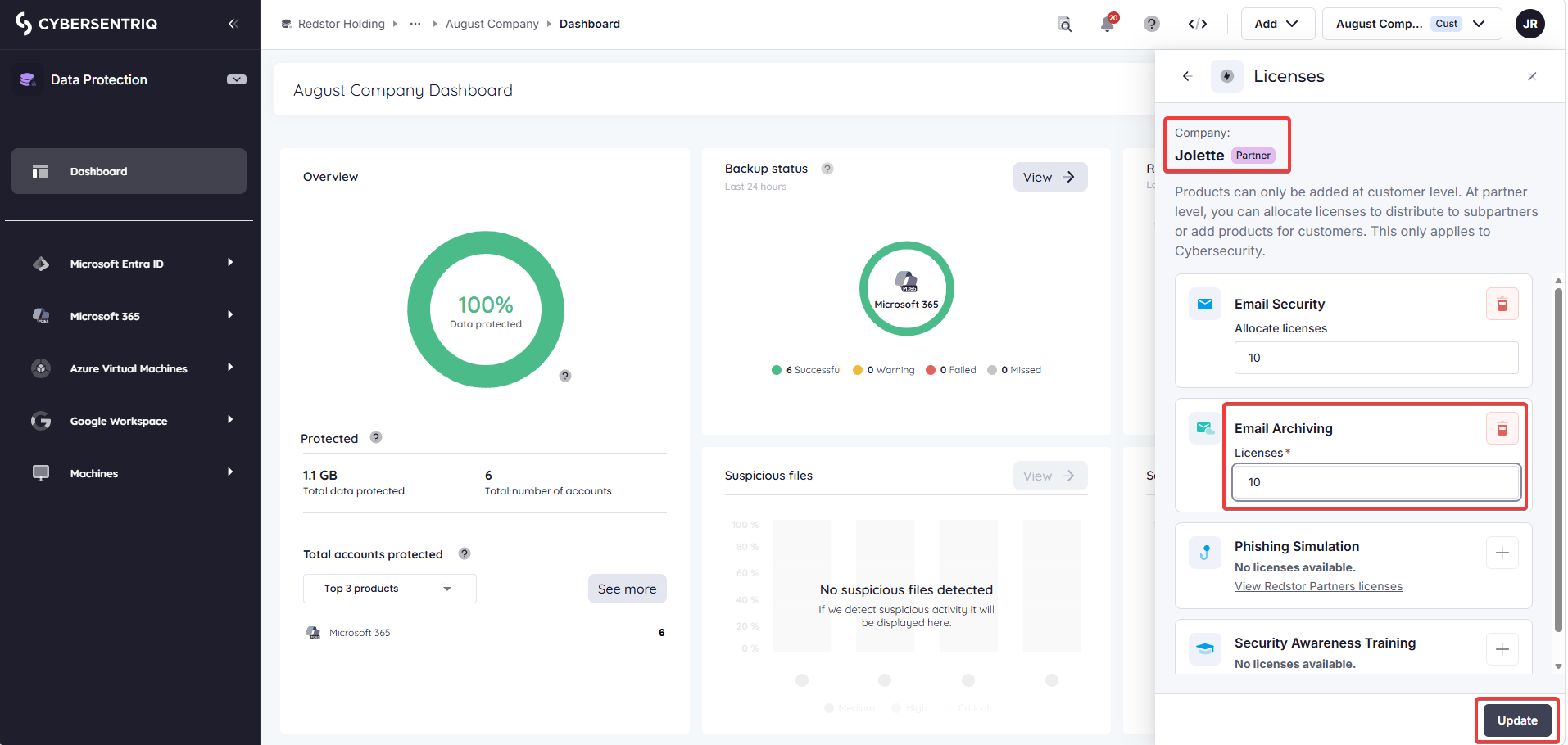
If you now click the back button, you will return to the Add products slide-out for August Company, where Email Archiving will now be available.
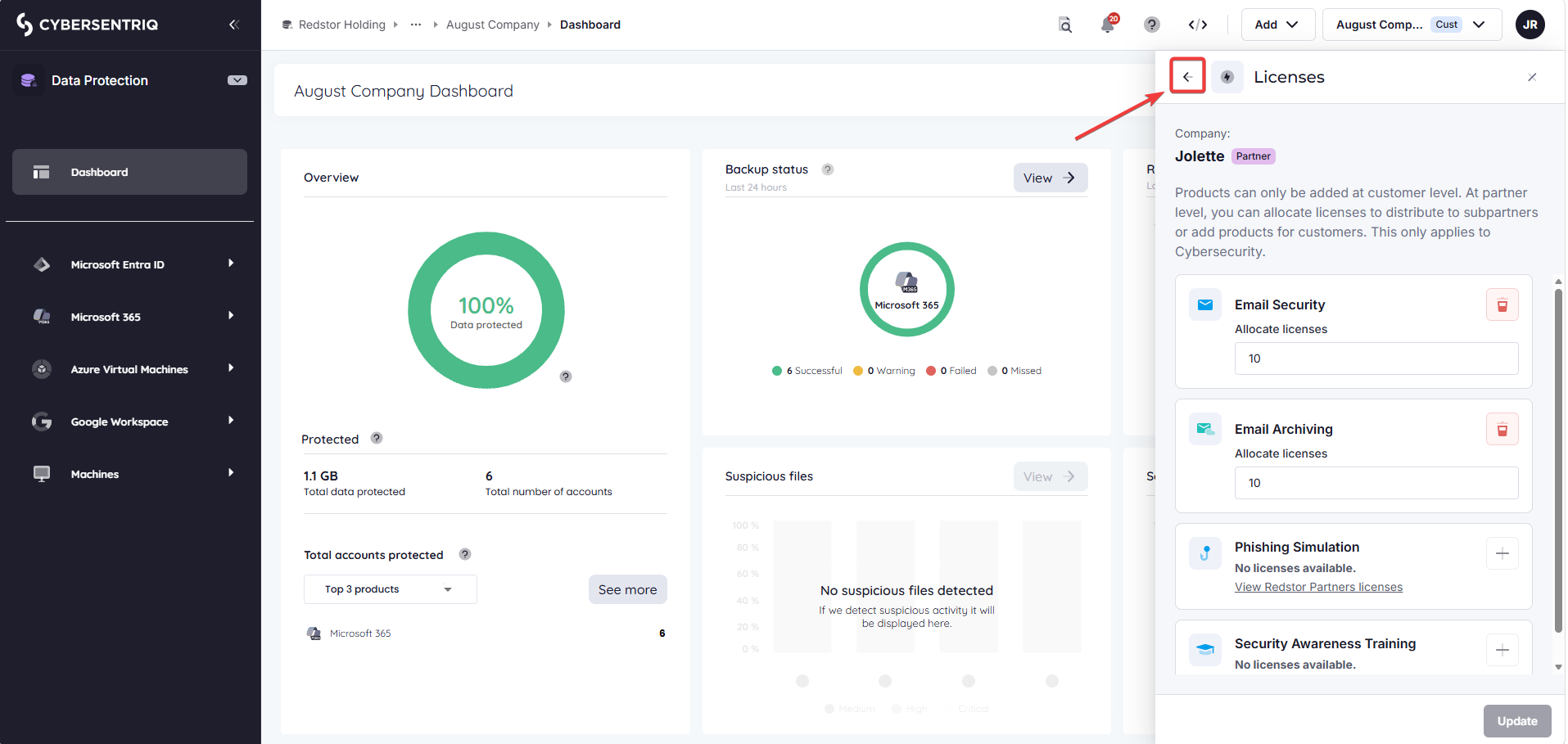
Click + to add Email Archiving to this customer.
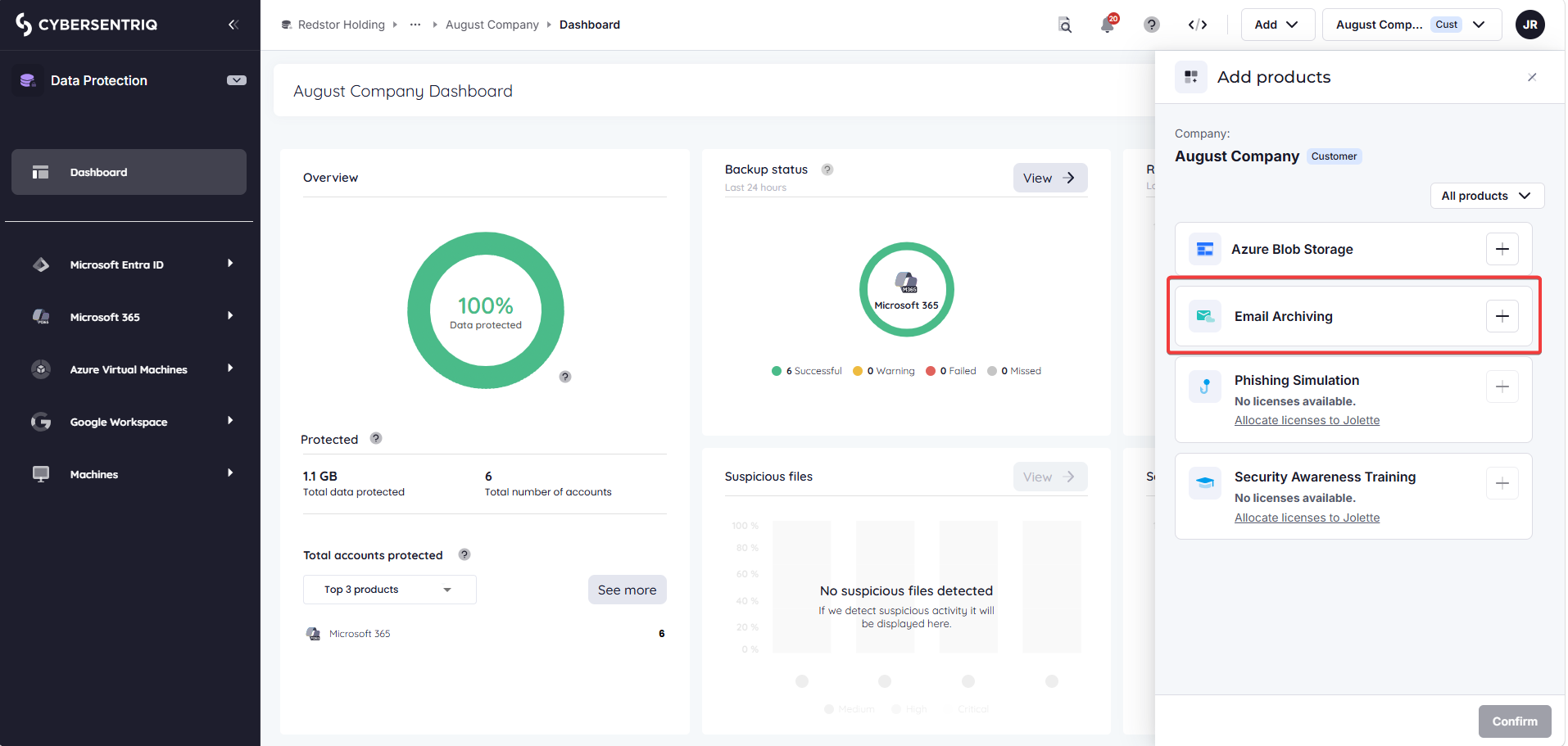
Enter a number under Email Archiving and click Confirm. In this example, 5 Email Archiving licenses will now be added to the customer August Company.
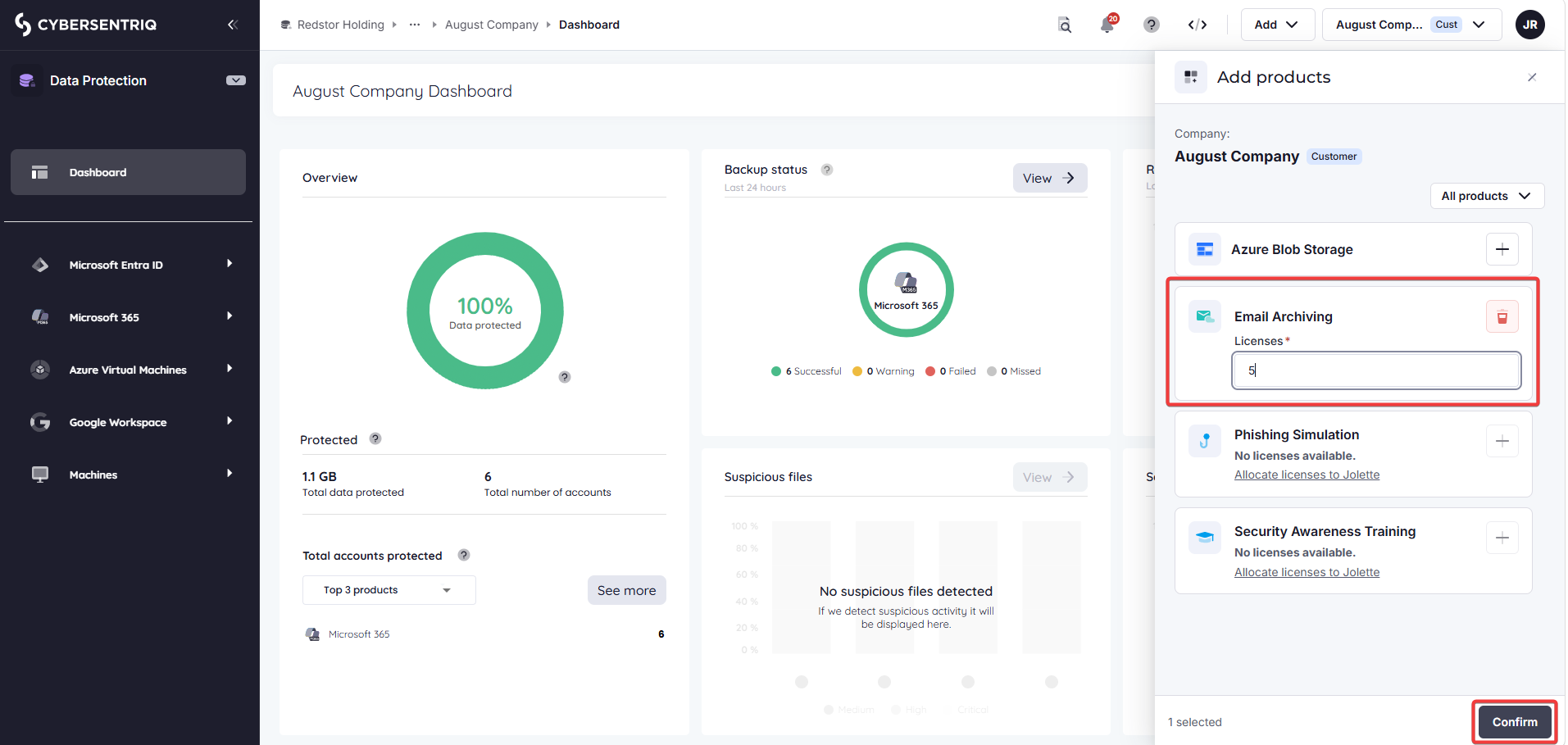
If you go to this customer’s dashboard in the Cybersecurity workspace, you will see Email Archiving in the side navigation. From here, you can follow the steps in Email Archiving Setup.
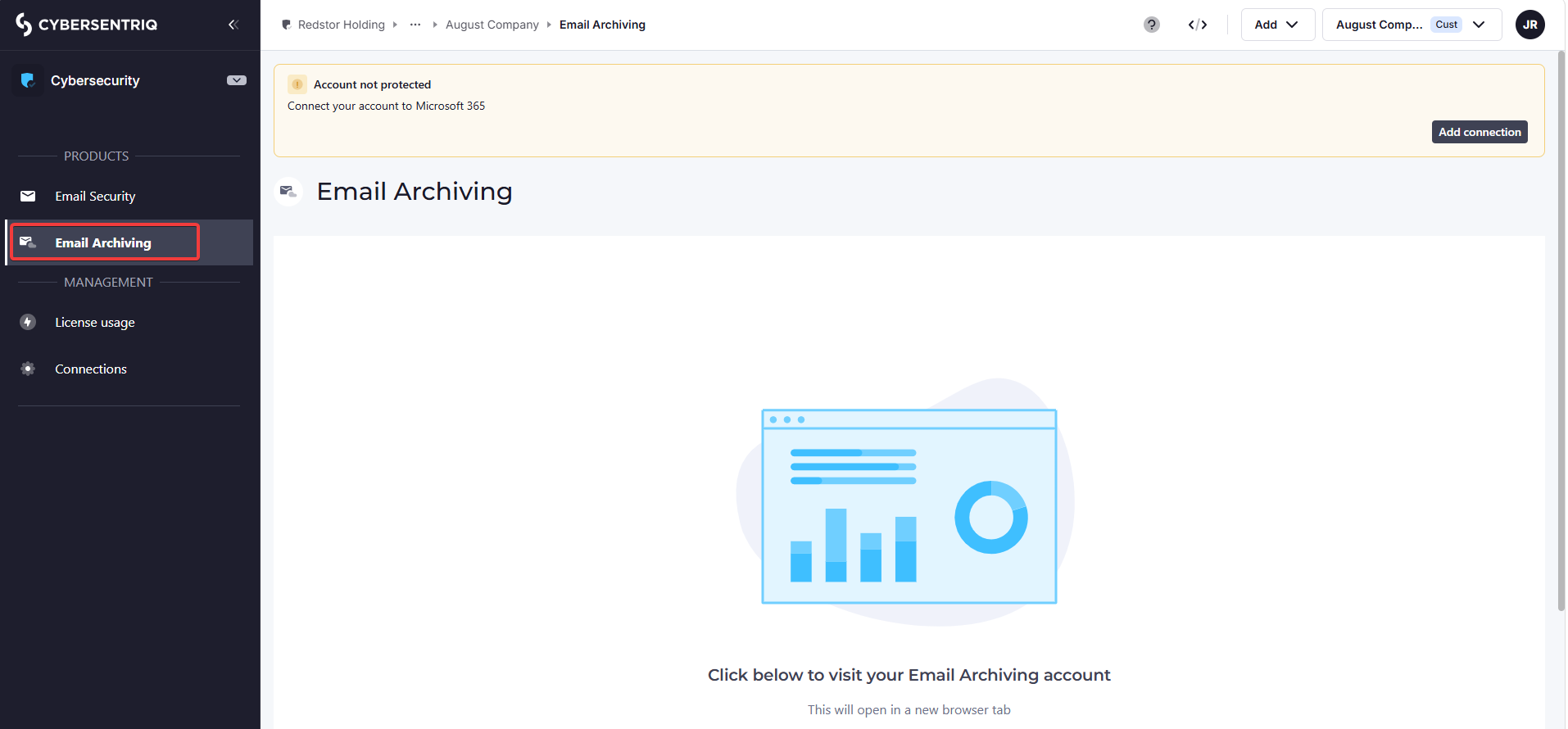
In the case of other products, such as Email Security, you can now connect a Microsoft tenant for this customer by following the steps in Connect to Microsoft 365.
If you are attempting to add a Cybersecurity product to a customer and the product listing shows "No licenses available" with no option to allocate licenses, the cause is that no licenses have been enabled further upstream, and you will need to add licenses as described below.
How to add licenses to a partner
Note:
- Licenses have to be added to a partner before that partner can add products to their customers.
- Licenses need to be enabled at least one level higher than the organization the licenses will be used by.
- Licensing only applies to Cybersecurity products (not Data Protection).
To add licenses to a partner, go to Add > Licenses from the top navigation in any area of the platform. Make sure the "currently viewing" field is set to the partner you want to add the licenses to.
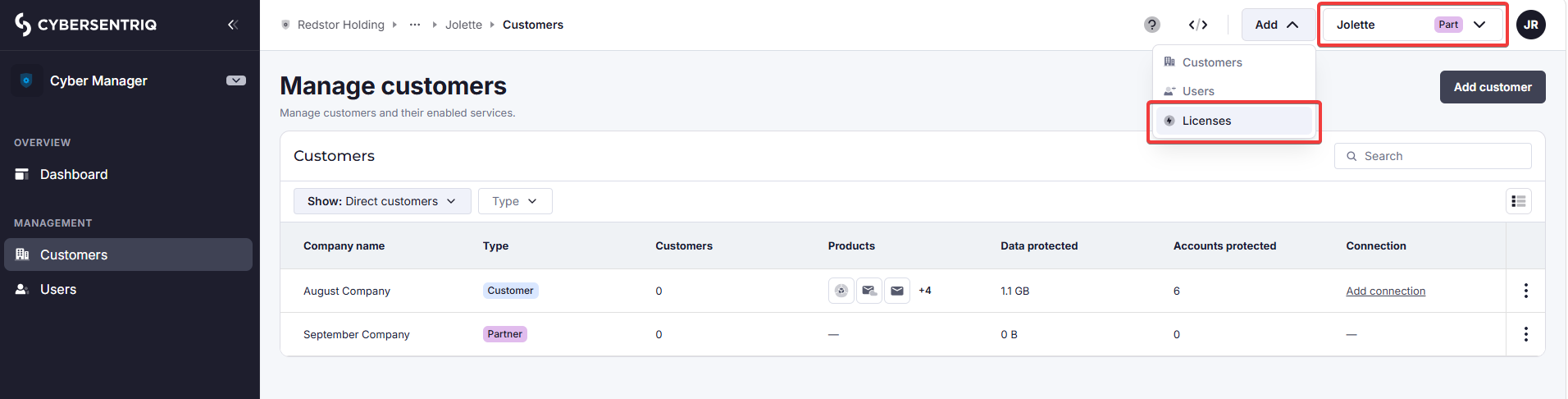
Change the number of licenses for the applicable product/s and click Update.
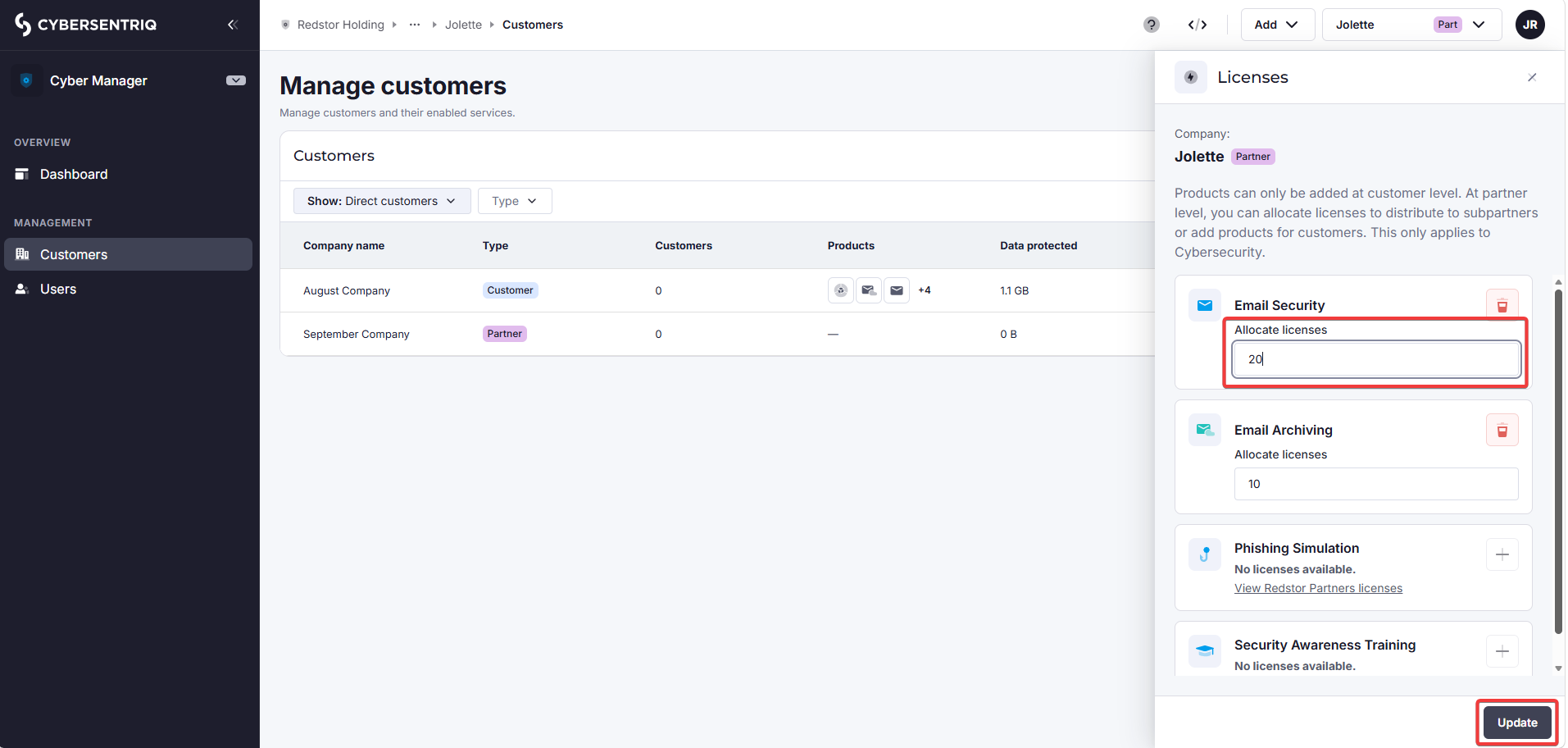
If the product listing shows "No licenses available" with no option to allocate licenses, it means an upstream parent has not enabled any licenses for that product (not just that the licenses have not been assigned).
There will be a link under the product listing which goes to the level where licenses need to be enabled for the product. The link will say View [parent partner] licenses. Click on this link (you may need to do so at more than one level) to get to the level where you can enable licenses for the product. You will only be able to access the organizations for which your role has permissions.
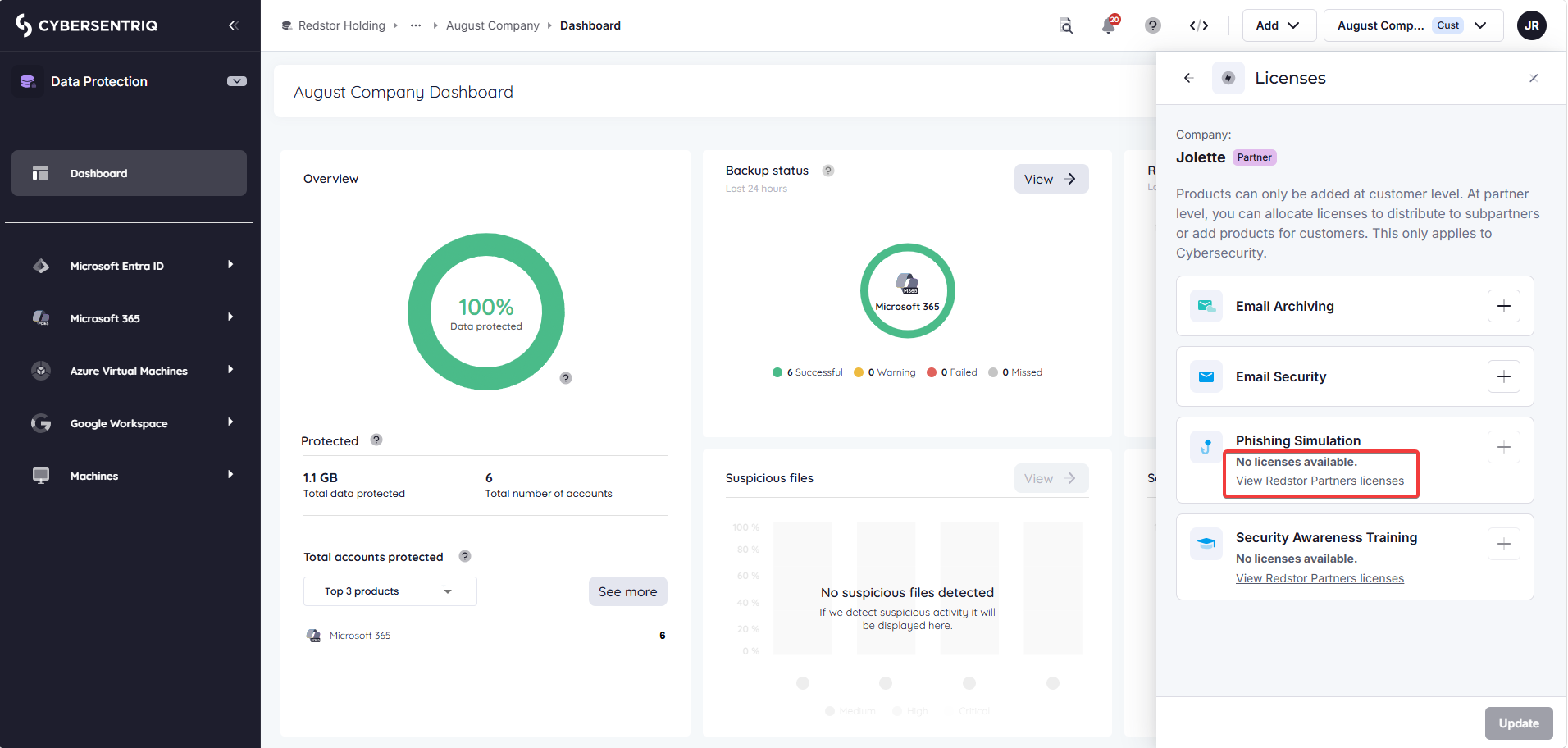
If you are unable to add licenses for a new product, please contact your account manager or service provider to enable the product.
If you are attempting to add a Cybersecurity product to a customer and the product listing shows "No licenses available" with no option to allocate licenses, the cause is the same (no licenses enabled upstream) and you will need to follow the same steps as above.